How Do You Save a Rotated PDF? Guide to Page Orientation, Angles, and Odd/Even Page Settings
Does a PDF look upright in the reader but appear sideways again when reopened? Learn the difference between temporarily rotating the view and saving the page orientation, explore clockwise, counterclockwise, 180°, and odd/even page settings, and check documents with mixed portrait and landscape pages.
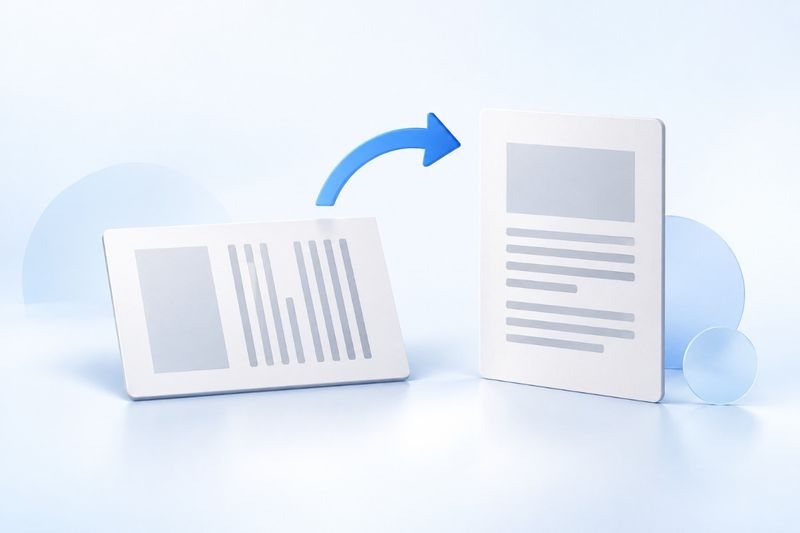
To save a PDF with the correct orientation, you must save the change to the file rather than rely solely on the reader's temporary view rotation. In PDF Smart Kit's “Rotate PDF” tool, select an angle and page range, process the file, and download the new version. Then close the preview and reopen the downloaded file to check it. This operation rotates the entire page; it does not automatically reformat a landscape table into a portrait layout.
Why does the PDF look upright but appear sideways again when reopened?
Some readers' rotation buttons only change the current viewing orientation without modifying the page orientation stored in the file. Therefore, even if a screenshot looks correct and the document is readable in the current window, the attachment you send to someone else may still be sideways.
Another common reason is that you opened the old file. The newly downloaded file may have a name similar to the original, or the browser may still be displaying the old preview. To determine whether the rotation was saved successfully, check the file downloaded this time instead of looking only at the processing tool's preview.
Before choosing an angle, first identify what is wrong with the page
Rotate a page 90° if the entire page is lying sideways, or 180° if it is upside down. If only the page dimensions are landscape while the text and charts are already readable normally from left to right, it may be a correctly formatted landscape page and does not need to be rotated merely to “standardize everything as portrait.”
A scanned document may also be tilted by just a few degrees. The current rotation tool supports 90° clockwise, 90° counterclockwise, and 180° rotations. It is not an arbitrary-angle correction tool and cannot precisely straighten slightly skewed scanned text.
- 90° clockwise: Rotates the entire page one-quarter turn clockwise.
- 90° counterclockwise: Rotates the entire page one-quarter turn in the opposite direction.
- 180°: Turns an upside-down page to the opposite orientation.
- No rotation: If the content is already upright, there is no need to rotate it just because the page is wider than it is tall.
AI-generated conceptual illustration, not an actual screenshot.
How to Save the Correct Orientation with PDF Smart Kit
Step 1: Open the rotation tool and select a file
Go toRotate PDF, and select the PDF you want to correct. Check the orientation from beginning to end and note whether “all pages are sideways,” “only even-numbered pages are upside down,” or “only a few scattered pages have problems.” This determines whether you can process the pages in a single batch.
Step 2: Set the angle and page range
Select the required rotation angle, then choose all pages, odd pages, or even pages. Here, odd and even pages are determined by their position in the PDF file: the first page is page 1 and counts as an odd page, even if it is a cover without a printed page number.
For example, if pages 2, 4, and 6 of a six-page scanned file are all upside down, you can select even pages and rotate them 180°. If page 2 as printed on the document is actually the third page in the file, do not use the printed page number; use the thumbnail order in the file instead.
Step 3: Process, download, and reopen
After confirming the page range, apply the rotation and download the output PDF. Then open the new file in a reader and check the first page, the last page, and pages near the boundaries of the selected range. For odd- or even-page operations, it is best to alternately check a set of unchanged and corrected pages to ensure that pages that were already correct have not been rotated incorrectly.
The output name usually includes a rotation indicator, but the filename is not proof that the result is correct. Before submitting the file, check the actual content orientation. To distinguish versions more clearly, keep the original and give the verified file a name that includes the date or intended use.
What if only a few scattered pages need to be rotated?
The rotation tool currently supports only all pages, odd pages, or even pages as batch ranges. Do not assume that it accepts a custom list of page numbers. If only pages 3 and 7 are sideways while the other odd pages are correct, selecting odd pages directly will incorrectly rotate pages that should remain unchanged.
In this situation, you can first useSplit PDFto extract the pages or sections that need to be processed separately, rotate the problematic parts, and then restore the original order usingMerge PDF. The splitting tool outputs a ZIP file. Extract it first, then place the PDFs it contains into the merging workflow in the correct order.
Processing the file in sections involves more steps and may also affect bookmarks and internal navigation. If the document has a particularly large number of pages, complex forms, or digital signatures that must be preserved, a dedicated editor that supports page-by-page rotation and preservation of related structures is more suitable. Do not risk rotating pages in bulk just to avoid configuring an additional setting.
What is the difference between rotating, cropping, and reformatting?
Rotation changes the orientation of the entire page, including its text, tables, and images. It does not recalculate paragraph wrapping or split a wide table into multiple narrow tables. To convert a landscape report into a true portrait layout, you generally need to return to the Word, Excel, or other source file, configure the page layout, and export it again.
Cropping changes the visible page boundaries and is suitable for reducing excess margins around the page. If the orientation is already correct but the margins around the main content are too wide, consider usingCrop PDF. Do not crop out half of a table to simulate a portrait layout, as this will leave the visible content incomplete.
Rotation is also not the same as rescanning. It cannot improve the resolution of blurry photos, automatically remove shadows from photographed pages, or create searchable text that was not already present. If a file has multiple issues, correct its orientation first, then decide whether additional processing is needed.
Will text become blurry after rotation?
This tool saves the orientation by modifying the PDF page rotation setting rather than taking screenshots and generating a new image-based PDF, so rotating will not add another round of full-page JPG compression. However, scanned pages that were already blurry will not become clearer.
Also pay attention to the zoom level when viewing the file. After the same page is changed from landscape to portrait, the reader may adjust its “Fit to Window” display size, making the text appear smaller or larger. Check the details at a similar zoom level before deciding whether there is an image-quality issue.
Frequently Asked Questions
What happens if I rotate a page 90° twice in a row?
Rotation is applied on top of each page's current orientation. If you rotate an already rotated output file another 90° in the same direction, it will continue rotating rather than automatically recognizing that “it should stop upright this time.” If the result is not as expected, it is usually easier to return to the retained original file, adjust the settings, and verify again.
Why is the result still wrong even though I selected the even-numbered pages correctly?
First, check whether you confused the printed page numbers in the document with the page order in the file. Then check whether the orientation issue really affects all even-numbered pages. If a page has been inserted or deleted, the odd/even positions of all subsequent pages will change. Batch rules must match the current file, not an older version.
Can I rotate a digitally signed PDF and send it directly?
Check the recipient's requirements first. Changing the page settings and saving the file again may affect the validation status of existing certificate-based signatures. A visible signature image on the page does not mean the original signature is still valid. Keep the original copy of important signed documents, and sign them as required after completing the layout adjustments.
There is only one reliable way to confirm completion: reopen the newly downloaded file and verify that the target pages have the correct orientation and that no non-target pages were rotated by mistake. Once confirmed, send that file as the final attachment.