What Should You Do If a PDF Is Corrupted and Won’t Open? Repair Steps, Troubleshooting, and Recovery Limits
A PDF that won’t open is not necessarily corrupted. The download may be incomplete, or there may be a password or reader issue. Preserve the original first, then try rebuilding the readable pages and verify that the repaired file is complete.
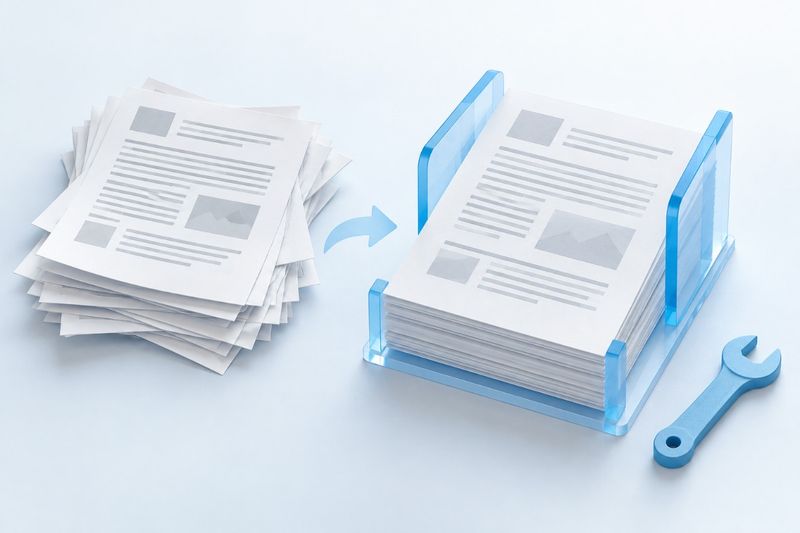
When a PDF won’t open, first preserve the original file and confirm that it was downloaded completely. Then determine whether the issue involves a password, reader compatibility, or damaged file structure. PDF Smart Kit’s repair tool attempts to read the source file and rebuild the pages it can copy into a new PDF. It cannot recreate missing pages, images, or text from nothing, nor can it guarantee recovery of every corrupted file.
Perform These Three Checks Before Repeatedly Converting the File
Check the file size and download source. If the file is zero bytes, the download was interrupted, or an error webpage was saved instead of a PDF, changing the extension will not solve the problem. The most effective next step is usually to download it again from a trusted source or ask the sender to export and resend it.
Next, review the error message. A password request indicates an access-control issue, not file corruption. If you know the password and are authorized to process the file, you can use Unlock PDFIf you do not know the password, contact the file owner. The repair feature does not recover passwords or bypass authorization.
Finally, determine whether the file fails to open only in a specific reader. For files from trusted sources, test them in another installed and up-to-date reader. If one opens the file while another reports an error, the cause may be compatibility or different tolerance for structural issues. Do not disable system security protections merely to test an unknown attachment.
What PDF Repair Actually Does
The current Repair PDF feature does not reconstruct images or generate text. The tool first attempts to read the document, then copies its pages one by one into a new PDF and saves it. Only content in the source file that remains readable and copyable may be included in the output.
If the document structure cannot be read at all, or an object on a page cannot be rebuilt, the process may fail outright. Do not expect it to automatically skip every damaged page and deliver a “complete file.” Missing source data and invalid object references are different problems; rebuilding references cannot create data that no longer exists.
Safe Steps for Repairing a PDF
- Keep a local copy of the original file and record its name, size, and source. Do not overwrite the only original.
- Open Repair PDF, select the PDF you want to process, and start the repair.
- Wait for the process to finish. If an error occurs, note the stage at which it failed; do not assume a file was repaired if no output was produced.
- Download the rebuilt file, save it under a new filename, and reopen it for review.
- Compare it with the original version, a backup, or the page count confirmed by the sender to ensure that the main content and attachments are complete.
Do not skip the final step. A PDF that opens may still be missing text, images, or navigation structures. Conversely, a smaller output file is not necessarily “better repaired”; it may simply omit some document-level information.
Check at least five types of content after repair
- Page count and order: Check that the cover, body, and appendices are complete and that the sections are continuous.
- Page appearance: Check whether any text, images, charts, or page edges are missing or blank.
- Text usability: Check whether previously searchable or copyable content still works and whether numbers and special characters are correct.
- Interactive features: Check whether bookmarks, internal links, form fields, and annotations still serve their intended purposes.
- File identity: Certificate-based signatures, archival properties, and metadata cannot be assessed by appearance alone and must be verified separately.
The current repair process focuses on rebuilding pages. Do not assume that all document-level bookmarks, cross-page links, and form structures will be preserved exactly. For important forms, you can use PDF Forms to check supported fields, but this tool cannot replace verification against the original business data.
Blurry scans and garbled text are different types of damage
Gray, skewed, or blurry scanned pages are often caused by poor capture quality rather than a damaged PDF container. Repair cannot create clear details that never existed. If rescanning is possible, improving lighting, focus, and page flatness will be more effective.
If a page is clear but its text cannot be selected, it may simply lack a text layer. Use PDF OCR to try to add searchable text, but the recognition results must be proofread. If the page already contains incorrect glyphs or missing characters, OCR cannot determine what the damaged content originally said.
Example: The repaired file opens, but some information is missing
Suppose the sender confirms that a report has twelve pages and a fillable application form. The rebuilt file still has twelve pages, but the form area shows only blank boxes that cannot be clicked or filled in. This means only that some page content is viewable, not that interactivity has been restored. Request the original form or a reliable backup instead of treating a screenshot of the blank boxes as a complete recovery.
The same checks apply to signed contracts. A visible signature or seal image does not mean that the certificate-based signature remains valid; rewriting the file may change the verification result. Keep both the original and rebuilt files and verify them using an appropriate process. Do not treat the repaired output as a substitute for the originally signed file.
When to stop trying to repair a file
If the source file is zero bytes, is missing substantial content, or repeatedly fails at the same structural error, repeating the same steps will usually provide no new information. Look first for backups, previous versions, and original editable files. Asking the sender to export the file again is often more reliable than applying additional conversions.
For important records such as financial documents, contracts, and medical records, an authorized person should verify the content even if the output can be opened. Do not use the automatically rebuilt file as the new sole record. Preserve the source and processing notes, clearly indicating which content has been confirmed and which remains uncertain.
Frequently Asked Questions
Can PDF repair restore deleted pages?
There is no guarantee. The current tool relies on content that can actually be read from the source file. It does not search disk history, cloud storage recycle bins, or locations outside the original file for pages. Restore missing pages from the original or a backup.
Are repair and compression the same feature?
No. Repair attempts to reconstruct readable pages, while compression mainly addresses output size and image quality. Files that cannot be opened should not be diagnosed through repeated compression. Resolve the access issue first, then decide whether the file size needs to be reduced.
Can I delete the original file after a successful repair?
Deleting it immediately is not recommended. Keep it at least until the page count, content, and related checks are complete. If the original file has signatures or archival value, follow the applicable retention policy rather than deciding solely because it can now be opened.
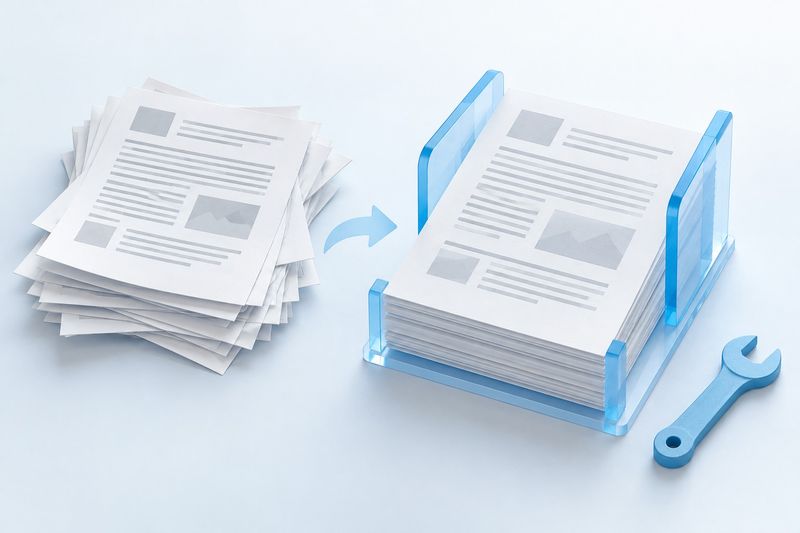
This is an AI-generated conceptual image showing the reorganization of an existing page structure. It does not imply that data absent from the source file can be recovered.