How to Reorder PDF Pages? Drag to Sort, Customize Page Order, and Check for Missing Pages
Are your PDF pages out of order? Learn how to arrange the cover, main text, and attachments using thumbnail dragging, reverse order, and custom page sequences, while avoiding duplicate or missing pages and checking the table of contents, bookmarks, and original page numbers.
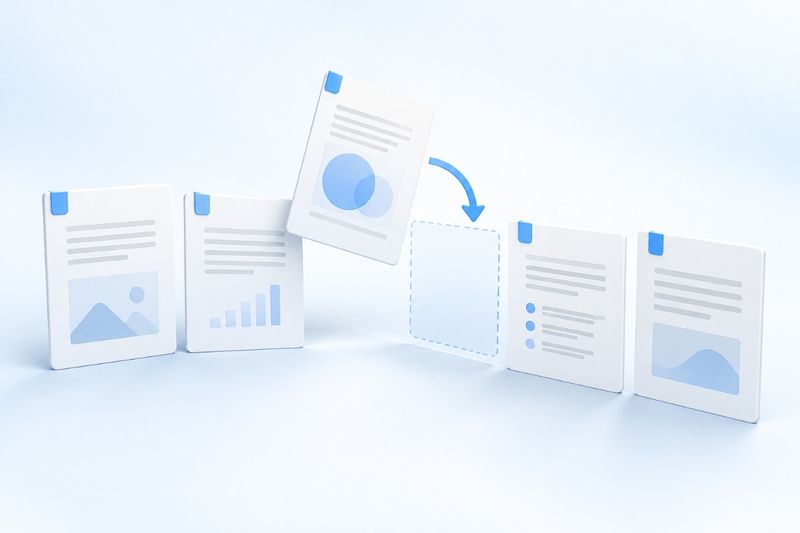
When PDF pages are out of order, use “Organize PDF” in PDF Smart Kit to rearrange them, then download a new PDF. It is suitable for moving the cover to the beginning, placing attachments at the end, or reversing the entire document to restore its order; when organizing, retain all pages and make sure each page appears exactly once. If you only want to keep a few pages, use Extract Pages instead of replacing deletion with an incomplete sorting list.
First decide: do you need to sort, merge, or extract?
“Organize the materials” may refer to different operations. If you already have one complete PDF and only the pages are reversed, page sorting is appropriate; if the materials are still spread across multiple files, firstMerge PDFthen check the total page count and chapter order.
If you only need to send three pages from the original file, useExtract PDF Pages. Sorting solves “in what order should all pages appear,” while extraction solves “which pages should be kept.” Distinguishing between the two helps you avoid repeatedly encountering missing-page warnings in the sorting input field.
Create a page-order list before sorting
Do not sort solely by the page numbers printed on the pages. Page 1 of a PDF may be the cover, and page 2 may be the table of contents, while the “1” printed on the main text is actually on file page 3. Sorting uses the file page order—the position counted from the first page—not the numbers in the page content.
You can first write down “what content corresponds to each original page.” For example, in a five-page document, if original page 3 is the cover, pages 1 and 2 are the main text, and pages 4 and 5 are attachments, the target order is 3,1,2,4,5. Here, the numbers refer to pages in the original file; after moving the cover, you do not need to renumber the remaining entries.
- Record the total number of pages in the original file and use it to check for missing pages after downloading.
- Identify the divisions between the cover, table of contents, main text, and attachments.
- Note landscape tables, blank separator pages, and signature pages separately; do not assume they are “extra” based only on the thumbnails.
- Keep the original file, and give the organized file a new name that makes its version easy to identify.
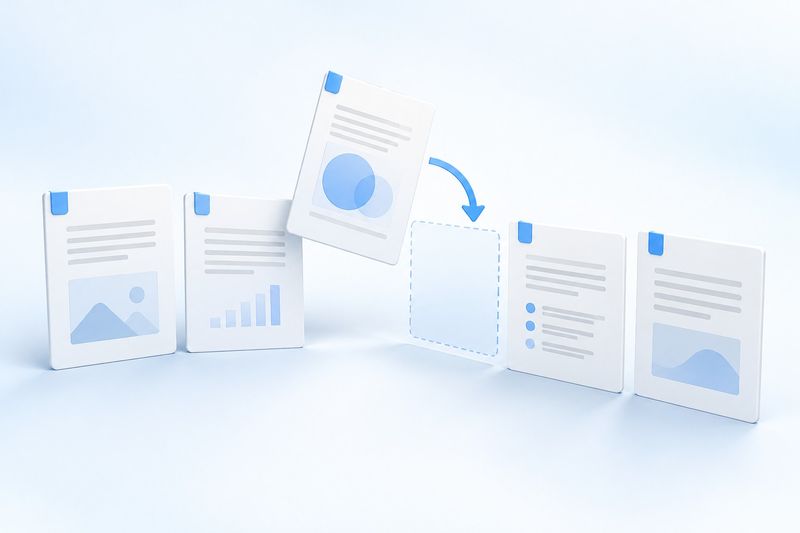
AI concept illustration, not an actual operation screenshot.
Reorder pages in PDF Smart Kit
Step 1: Open the organizing tool and select a PDF
Go toOrganize PDFand select the file that needs reordering. Wait for the thumbnails to finish loading. First confirm the first page, last page, and total page count, then start dragging. When there are many pages, checking them section by section is easier to verify than moving many pages at once from memory.
Step 2: Choose the appropriate reordering method
When only a few pages are out of order, you can drag the thumbnails to adjust their positions. If the entire document is completely reversed, you can use reverse order. If only the last two pages are swapped, reversing the order would affect every page, so it would not be the appropriate option.
If you already have a list prepared, you can select custom order and separate each original page number with commas. For a five-page file, enter 3,1,2,4,5to place original page 3 first, followed by the remaining pages. Do not write 3,1-2,4-5: custom ordering requires each page number individually and does not accept abbreviated ranges.
Step 3: Handle custom-order input warnings
The custom order must include every page in the file, and each page may appear only once.3,1,2,4 Page 5 is missing;3,1,2,4,4 Page 4 is duplicated, and page 5 is also missing; including page 6 exceeds the range of a five-page file. None of these is a valid ordering list.
When correcting the list, compare the input list with the original page-order list item by item. Do not eliminate the warning by arbitrarily adding a number. If you really want to remove an attachment, use the delete or extract-pages tool instead, and recalculate the page count of the reorganized file.
Step 4: Process and download, then reopen the result
After confirming that the preview order is correct, process the file and download the reorganized PDF. Reopen the downloaded file in a PDF reader. First check the transition between the cover and the main text, then inspect the first and last pages of each chapter. Do not treat the arrangement in the browser workspace as a saved delivery file.
The pages are reordered. Will the table of contents and old page numbers update along with them?
Reordering pages does not automatically rewrite the original table-of-contents text or printed page numbers on the pages. For example, if original page 5 is moved to the beginning, the “5” originally printed on the page may remain; the table-of-contents text “See page 8 for the appendix” will not automatically change to the new location.
Bookmarks, internal links, and other navigation that depends on the old page order also need to be checked again; there is no guarantee that they will continue to work as expected after reordering. When preparing a formal report for submission, click at least a few key table-of-contents links and test jumps across chapters. If navigation is a delivery requirement, correct it in suitable editing software before submitting.
If you need to add consistent new visible numbering, it is recommended that you finish reordering first, then useAdd Page Numbers to PDF. The new numbering does not replace the old numbering: when the original pages already have page numbers, avoid displaying both sets of numbers at the same time, which could confuse readers.
How should three common situations be handled?
The scanned file starts with the last page
First check whether the entire document is in reverse order: the current first page corresponds to the last page of the original, the current last page corresponds to the first page of the original, and all pages in between are also arranged in the opposite order. After confirming this, use reverse ordering, then check the cover, table of contents, and last page. If only one attachment is in reverse order, adjust only that section.
A page became sideways after sorting
Page order and reading direction are two separate issues. Sorting does not reformat the page content, and it should not be treated as a direction correction. When a page needs to be set upright, useRotate PDF, and confirm that the rotation range will not affect other pages that were already oriented correctly.
The original file already has a certificate-based digital signature
Do not treat the reordered file as the original signed file for further circulation. Rewriting or recombining pages may affect digital signature verification; retain the original and determine whether to sign again according to the recipient's requirements. The signature graphic on the page may still be visible, but that does not mean the certificate verification status remains unchanged.
Frequently asked questions
Can sorting be used to copy the same page twice?
The current custom sorting feature cannot be used to duplicate pages. The sorting list requires every page to appear exactly once, and duplicate page numbers will trigger a warning. When you need to repeat a page, use an editing workflow suited to that task rather than relying on entering the same page number twice.
Will the pages become images after their order is adjusted?
The organization tool copies and rearranges PDF pages; it does not convert each page to JPG for sorting. It still does not guarantee complete fidelity for all PDF objects; for forms, navigation, and complex file structures, rely on an actual inspection of the downloaded file.
How can I confirm that no important content was omitted?
First check the total page count, then use the page-order list to verify that every original page appears exactly once. Having the same total page count is only the first step; checking the content is equally important, especially for similar-looking attachments, blank separator pages, and signature pages.
Treat sorting as an organized task with a checklist, not as casual dragging: first confirm the original page order, then rearrange the pages, and finally reopen the downloaded file to check it. This is how you get a PDF suitable for handing to the next reader.