How to Redact Private Information in a PDF: Blackout, Cropping, and Export Verification
Drawing a black box does not necessarily delete the text underneath. Learn how the current redaction tool handles one area at a time and converts the entire PDF to images, and how to check the redacted area, other pages, and original-file management.
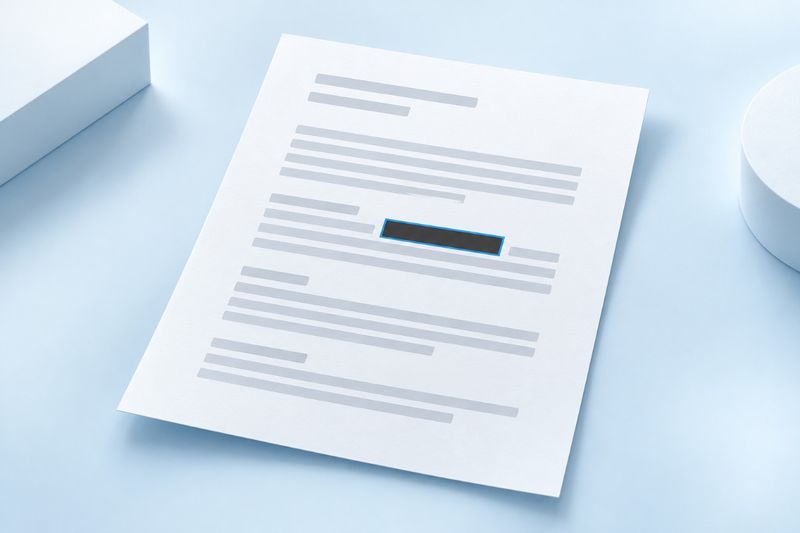
Placing a black box over a PDF does not necessarily delete the original text underneath, and cropping page edges does not remove hidden data. PDF Smart Kit's redaction tool renders pages as images, draws an opaque block over the selected area, and generates a new image-based PDF. The current web tool lets you set one rectangular area on one page at a time. It does not automatically search the entire document for names, account numbers, or other sensitive information.
Why Ordinary Black Boxes and Cropping Are Not Enough
Some annotation or drawing tools merely place a rectangle over the original page. Readers may still be able to copy or search the text underneath, and removing the annotation may reveal the original content again. Do not assume information has been removed from a file simply because it is no longer visible.
Crop PDF mainly adjusts the page's visible boundaries. Objects hidden outside those boundaries should not be considered securely deleted. Watermarks likewise add visible markings rather than remove sensitive information. To create a redacted copy, use the purpose-built Redact PDFand understand how it produces the output.
What the Current Redaction Tool Actually Produces
The current implementation renders the entire file page by page, fills the target rectangle directly on the corresponding page image, and writes those images to a new PDF. It does not place a removable annotation box over the original text objects, nor does it include the original selectable text layer in the output.
The trade-off is that the entire output becomes image-based, not just the redacted page. Text search, copying, form interaction, clickable links, and vector detail will be affected, and certificate-based signatures cannot be carried over to the new file. For materials that must retain accessible text or complex interactions, choose a method that meets those requirements.
List the Information to Protect Before You Begin
First determine who will receive the file and what they need to see, then list every location that requires redaction. Names, addresses, phone numbers, and identification numbers may recur on the cover, in headers, in appendices, and near signatures. Redacting only the first occurrence does not complete the privacy review of the entire file.
Also check QR codes, barcodes, and photos. Some information is not ordinary text but can still help identify the same person or record. The current tool does not detect such content automatically. Highly sensitive material should be fully reviewed by an authorized person who understands its intended use, rather than relying on a single rectangle.
Steps for Redacting One Area
- Keep the original file and manage the external-use copy separately from it.
- Open Redact PDF, select the file and target page, then locate the area to process in the preview.
- Adjust the rectangle's position, width, and height so it fully covers the target without exposing the tops, ends, or strokes of characters.
- Choose a suitable opaque redaction color and check that it does not obscure information that must remain visible.
- Generate and download the new file, reopen it, and zoom in to verify the redaction edges and the entire document.
Some sensitive numbers have characters of varying heights or sit near the edge of a skewed scanned page. A box that fits “perfectly” may leave part of them exposed, so allow adequate coverage without obscuring necessary content. Do not rely on the thumbnail alone; omissions are easier to spot when zoomed in.
Do not assume information in multiple areas or pages will be processed together
This webpage lets you specify one page number and one rectangle’s position and dimensions at a time. Moving to another page does not automatically build a cross-page redaction list. The same name in an unselected location will not be automatically detected and processed simply because it was covered elsewhere.
If there are multiple separate areas, consider whether a dedicated tool that supports multi-area review would be more suitable. Processing the output copy again causes additional re-rendering, so recheck the image quality. Do not casually cover large amounts of public information just to save steps, and do not interpret a one-time completion message as confirmation that the entire document has been anonymized.
Why you cannot verify redaction by searching only for the original number after downloading
An image-based PDF may contain no searchable text at all, so failure to find the number alone does not prove that the target pixels are fully covered. Zoom in and inspect every area for remaining digits, adjacent labels, repeated occurrences, and accidental use of the unprocessed original.
You can also try selecting, copying, and searching as supplementary checks, but they cannot replace visual verification. If you later use PDF OCR to add a text layer to the output, use only a redacted copy that you have already verified. Do not reintroduce the original file’s text layer into the result, and review it again afterward.
Other pages and filenames may also expose information
Suppose the contact details on the first page are covered, but a later receipt page lists the same number again. The file is still unsuitable for sending as anonymized material. Likewise, a filename containing a name or account number does not automatically become safe when page content is covered.
The generated name may retain part of the original filename, so actively check it when saving and sharing. Originals, screenshots, related attachments, and previously shared links are separate items; this process does not automatically delete or revoke them. Do not treat the successful output of one copy as proof that “all related information has been removed.”
When is it better to extract pages first?
If the recipient needs only a few non-sensitive pages, you can first use Extract PDF Pages to create an excerpt containing only what is needed, reducing the content to review. Then check these pages for private information; extraction itself does not automatically anonymize them.
For materials that must be delivered in full, do not remove essential pages merely for convenience. First clarify what content must be retained, then plan redaction and verification to avoid conflicts between privacy protection and content integrity. For signed documents or compliance records, retain the original and label the copy’s processing status as required.
Final checklist for reviewing the redacted file
- Target: The page numbers and locations are correct, and every visible area requiring redaction has been handled.
- Edges: When zoomed in, no character shapes, remaining digits, or identifiable parts of codes are exposed.
- Content: Text, charts, and page order that should remain are still readable, with no essential information mistakenly covered.
- Functionality: Changes to text layers, links, forms, and signatures caused by image conversion are acceptable.
- Sharing: The filename, attachments, and recipients are correct, and the file being sent is the final verified copy.
Frequently Asked Questions
Is white redaction safer than black?
Safety is not determined by color alone. What matters is the output method, whether the content is fully covered, and whether the same information is exposed elsewhere. A lighter color is not automatically safer.
Can the tool guarantee that no one can identify me?
No such guarantee can be made. Unredacted context, images, or other files may still provide clues. The current tool does not automatically perform a full privacy audit, so manual review based on the actual scope of sharing is required.
Can I undo an incorrect redaction in the output PDF?
Do not rely on recovering the original area from the output. Redactions in images become part of the result. If you make a mistake, recreate the file from a securely stored original. Keep the original and the shared copy separate.
The image is an AI-generated conceptual illustration, not a redaction detection report, and does not imply automatic detection or comprehensive removal of private information.
Downloadable test materials
These synthetic samples contain no customer documents. A sample result does not establish an accuracy rate or guarantee other files.
· Chromium / Chrome 156.0.8078.74 · v1.0.0
- Inputs: digital-input.pdf · Outputs: redacted-output.pdf