How to Preserve Layout When Converting PPT to PDF: Fonts, Animations, and Export Checks
Before sharing a PPTX as a PDF, confirm which content will become static pages. Learn the limitations affecting fonts, animations, audio, video, and image-based output, and use the slide-by-slide checklist.
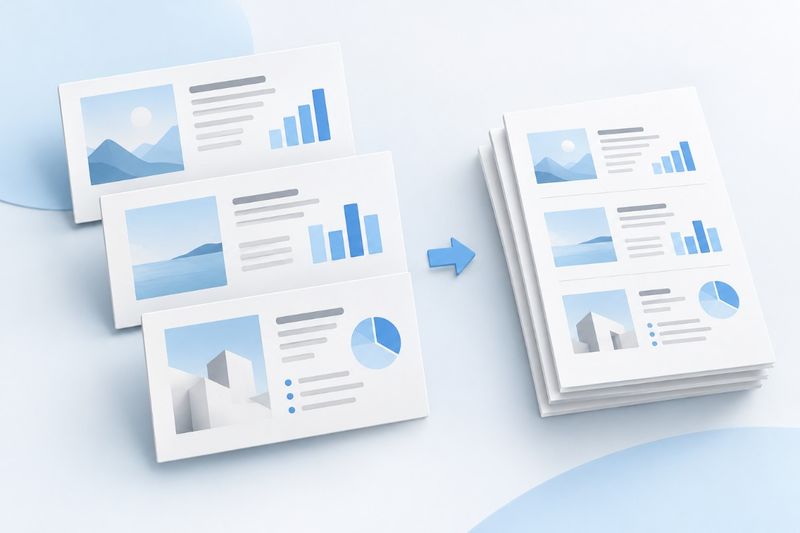
PPT to PDF is ideal for turning presentations into static files that are easy to read and share, but it does not preserve animations, transitions, audio, or video. PDF Smart Kit accepts PPTX files, renders supported slide content as images, and creates a PDF page by page. To assess the export, focus not on the file extension but on slide order, text placement, chart meaning, and small-text clarity.
Know the Difference Between PPTX and Legacy PPT
Currently, PPT to PDF accepts .pptx, but does not support the legacy binary .ppt. If you only have a PPT file, use office software that can open it and save it as PPTX first. Merely changing the filename extension does not convert the internal format.
A PDF is a delivery copy, not a replacement for the source presentation. Keep the original PPTX if you may need to edit images, speaker notes, or animations later. Nor should you expect to use PDF to PowerPoint to fully restore this information. Reverse conversion can only use content that actually exists in the PDF.
First, Decide Whether Static Output Is Suitable
Product introductions, course materials, meeting minutes, and proposal summaries can usually be made into static PDFs. Presentations that rely on click sequences to explain a process, reveal answers one item at a time through animation, or include video demonstrations need a dedicated reading version first. Otherwise, readers will miss information that appears progressively during the presentation.
For example, if three groups of graphics are layered on one slide and shown in turn through animations, they may all overlap after static export. A better approach is to split the three stages into three separate slides before converting them to PDF. This is editing advice; it does not mean the converter will automatically expand animation steps.
Steps to Convert PPT to PDF
- Make a copy of the PPTX as the delivery version, then organize the slide order and content to be shared in the original office software.
- Open PPT to PDF, select the PPTX file, and wait for the browser to finish the conversion.
- Download the generated PDF and compare it with the source file's thumbnail list to verify the page count and order.
- Check slides containing long titles, charts, special fonts, and images to ensure nothing is missing, overlapping, or cropped.
- Keep the original PPTX and send the verified PDF as a separate version.
Do not interpret “Conversion complete” as “Design approved.” Browser rendering can process supported text, images, and basic shapes, but it is not the same as Microsoft PowerPoint’s native layout engine. Always check the actual output to verify complex effects.
Why do fonts and text boxes change?
If a font referenced by the source file is unavailable in the current rendering environment, character widths, line heights, and line breaks may differ. Titles that just fill their text boxes are especially prone to losing their last characters or wrapping onto and overlapping subtitles. Mixed Chinese and English text, superscripts, subscripts, and special symbols also require separate checks.
You can use more common fonts in the delivery copy, shorten long titles, and leave extra room in text boxes. However, these measures only reduce the risk of errors and cannot guarantee identical fonts or complex layouts. If strict brand compliance is required, export from the office software used to create the presentation, then verify the result.
How are animations, videos, and notes handled?
The output consists of static pages. Animations and transitions will not play, and audio and video will not be retained as playable objects. Important videos should be provided separately through links or instructions accessible to the audience. If the main content needs to show a particular step from a video, add an explanatory still image to the PPTX.
Do not assume that speaker notes will automatically appear as supplementary PDF pages. Important conclusions, data sources, and instructions should be included on visible slides, or handouts should be exported separately from the original office software. Any content that should not be disclosed on hidden slides must be removed from the delivery copy; do not treat the hidden setting as a security barrier.
Why might text in the PDF not be searchable?
This tool renders each slide as a page image. The text’s appearance is included in the image, but a selectable text layer is not created automatically. If content must be copied, searched, or read by assistive technology, checking only its visual appearance is not enough.
You can use PDF OCR to add recognized text to an image-based PDF, but OCR results must be proofread and do not restore the original PPT objects. If accessibility or accurate text extraction is essential, use an export method in the original office software that preserves the text structure.
Check these four items after export
- Pages: Confirm that the number, order, and aspect ratio match the delivery version and that no internal pages are included.
- Text: Confirm that titles, small text, numbers, units, and footnotes are complete, especially near page edges.
- Graphics: Confirm that axes, legends, transparency effects, and stacking order still convey the same meaning.
- Readability: View the file at an appropriate zoom level on the actual device and confirm that it is legible without extreme magnification.
If the attachment is too large, you can try Compress PDF, but this involves another trade-off in page image quality. After compression, recheck small text and fine chart lines. Keep an uncompressed delivery copy, and do not repeatedly compress and overwrite the only version.
Frequently Asked Questions
Will each slide correspond to one PDF page?
The current process places each renderable slide on one PDF page and preserves the slide order. After export, compare the actual page count with the source file. If pages are missing or errors occur, do not send the file directly to the recipient.
Can I still edit the original graphics after conversion to PDF?
The current output consists of page images, not a PowerPoint made of editable elements. To make changes, return to the PPTX and generate a new PDF. Repeatedly converting between formats can increase correction costs.
If the PDF looks fine, can I delete the PPTX?
Not recommended. The PPTX preserves the editable structure and presentation information, while the PDF is only a static copy for viewing. Especially when course materials are updated regularly or client proposals require revisions, keep both files separately.
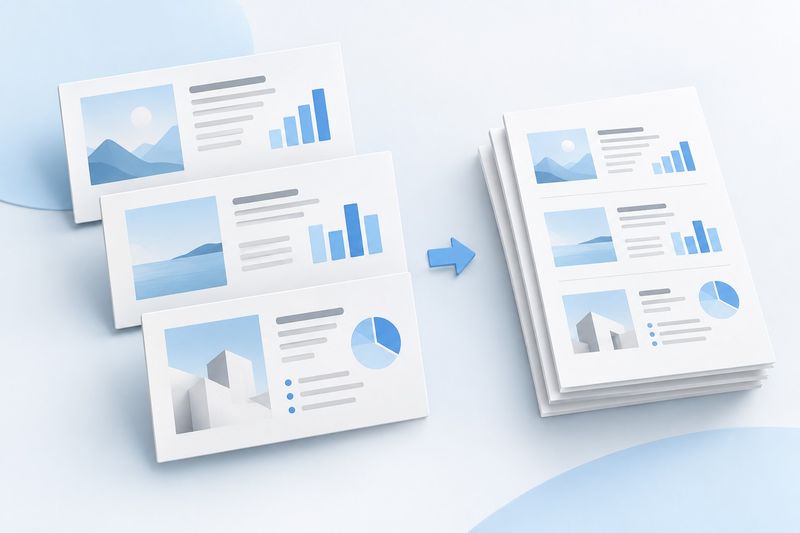
The image is AI-generated concept art illustrating the conversion to static documents. It is not a product screenshot and does not represent the number or layout of exported pages. The current tool converts each slide into one PDF page.