Formatting changed after converting PDF to Word? First distinguish text PDFs from scanned documents
First distinguish text PDFs from scanned documents, then choose direct conversion or OCR first. Learn about text objects, background graphics, layout differences in DOCX, and how to check the converted file.
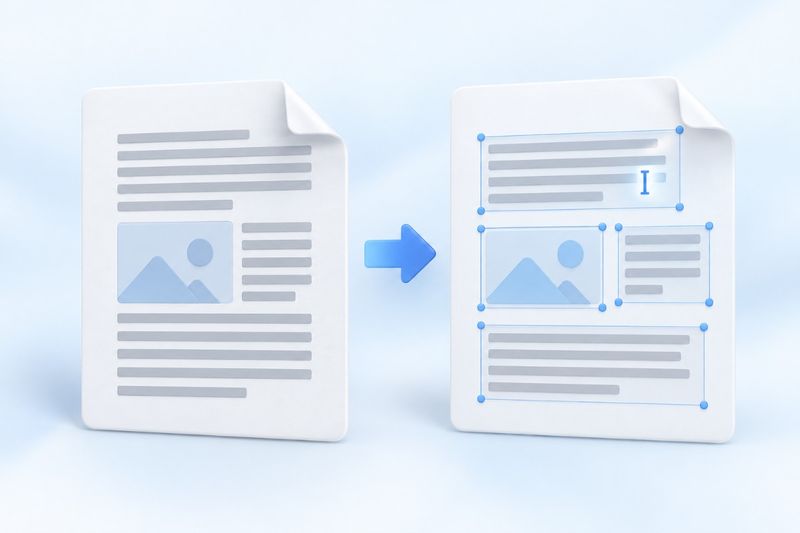
When people receive a PDF, many want to convert it directly to Word, change a few words, and continue using it. However, the converted file may contain text boxes, different line breaks, or entire pages that still look like images.
This does not necessarily mean the conversion failed. PDF focuses more on where content is placed on a page, while Word focuses more on how paragraphs and content flow. The two formats organize files differently. Converting a page to DOCX does not mean recovering the original source document used to create it.
For PDF Smart Kit’s feature—PDF to Word—first determine which type of PDF you have. This usually makes it easier to assess whether the results meet your needs.
Type 1: PDFs with extractable text
If you can select a passage in a PDF reader and copy it as normal characters, the file usually contains extractable text objects. The tool will try to place this text into editable objects while preserving its approximate position and style.
Non-text page graphics are retained as background graphics. Therefore, not everything visible on a page can necessarily be edited individually like a Word paragraph. You cannot tell from appearance alone whether icons, complex drawings, and outlined text are editable.
This type of fixed-layout conversion is useful for obtaining a version that you can continue organizing. It should not be understood as a guarantee that the original paragraphs, automatic table of contents, table semantics, or vector graphics will be restored.
Type 2: Scanned PDFs in which each page is an image
Scanned documents usually do not contain text that can be extracted directly. Simply converting the file format will not automatically turn text in images into accurate, editable paragraphs.
In this case, start with:OCR PDF, which adds a searchable text layer to the scanned document. After checking the recognition results, try converting it to Word. Verify names, amounts, and dates first, as recognition errors may otherwise be carried into subsequent drafts.
Even after OCR, the original layout may not be restored. Scan quality, text recognition order, columns, and table structure can all affect the final result.
How to convert a PDF to Word
- Confirm that the correct file is selected, then start the conversion.
- Download the generated
.docxfile. - Open it in a word processor that supports DOCX and compare it with the original PDF.
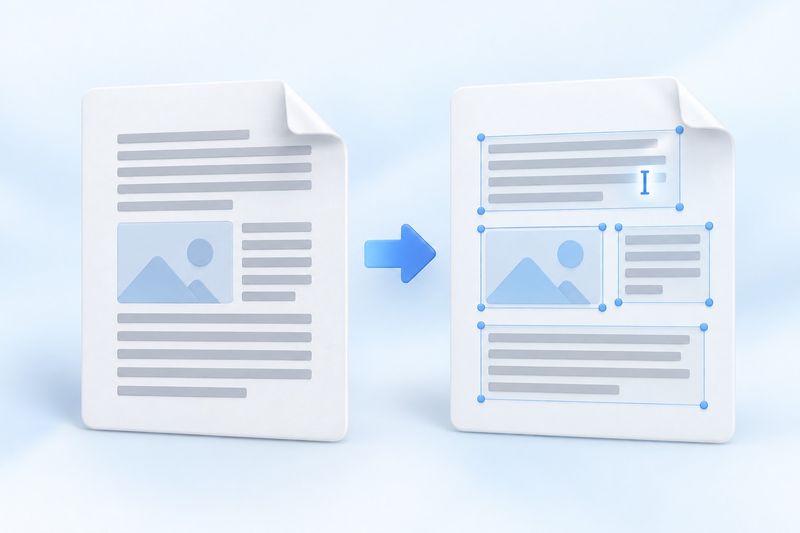
AI-generated conceptual image: from a fixed layout to editable content; it does not imply that the original layout can be fully restored.
Conversion takes place in your current browser, without uploading the selected PDF content to the application server. For documents with many pages or complex graphics, consider extracting a few pages and trying them first. This helps you avoid discovering only after processing that the output format is unsuitable for your work.
After opening the DOCX, check it in this order
First, check whether all text is present
Check the headings, body text, footnotes, and page footers for omissions. Then find several sentences containing numbers, punctuation, or special characters and check for substitutions, garbled text, or unusual spaces.
Next, check paragraphs, columns, and tables
Content that appears on the same line may consist of multiple independent objects in the DOCX. Two-column articles, tables spanning multiple pages, and complex headers and footers may also require manual cleanup.
If your goal is to rewrite a long document, gradually organizing the necessary text into regular paragraphs may be more efficient than adjusting every positioned object. The converted file can serve as a starting point, but do not assume it has the same editing structure as the source Word document.
Finally, check fonts and pagination
Fonts used in the source PDF may not be available on your computer or in your word processor. Differences in character width between substitute fonts can affect line wrapping and positioning. When you are ready to export the edited document to PDF again, remember to check the page count, overlapping text and images, and any content pushed off the page.
Do I have to convert to Word just to change a few words?
Not necessarily. If the PDF already contains editable text objects and you only need to change a small amount of text, first tryEdit PDF. This avoids unnecessary format conversion.
However, direct editing also has limitations: scanned pages, text within complex graphics, and some embedded subset fonts may not support the required changes. If a message appears, keep the original and choose a more suitable approach, such as OCR, conversion followed by cleanup, or returning to the source document.
Frequently Asked Questions
Why does the converted document contain many text boxes instead of continuous paragraphs?
The current tool uses fixed-layout conversion, with text positioning serving as an important reference. It attempts to preserve an approximate layout but cannot guarantee that it will infer the original document's paragraphs, tables, and reading order.
Will images and charts also become editable Word objects?
No. Non-text artwork is retained as a page background image and generally cannot be edited individually as its original graphic objects.
Can it be pixel-perfect compared with the original PDF?
No guarantee. Fonts, complex layouts, and software differences can all cause shifts. For materials with strict layout requirements, prioritize finding the original DOCX; if the source file is unavailable, allow time to review and clean up the converted document.
First clarify what needs to be edited, then choose a conversion path. This is usually more effective than repeatedly switching output formats. You can start with a short document andtry converting PDF to Word.
Downloadable test materials
These synthetic samples contain no customer documents. A sample result does not establish an accuracy rate or guarantee other files.
· Chromium / Chrome 156.0.8078.74 · v1.0.0
- Inputs: digital-input.pdf · Outputs: word-output.docx