Can You Edit a PDF After Converting It to PPT? Text, Image, and Slide Limitations
What can you edit after converting PDF to PPTX? Learn about extractable text, background artwork, page-by-page slide creation, and limitations with complex graphics. After downloading, check fonts, positioning, and page proportions.
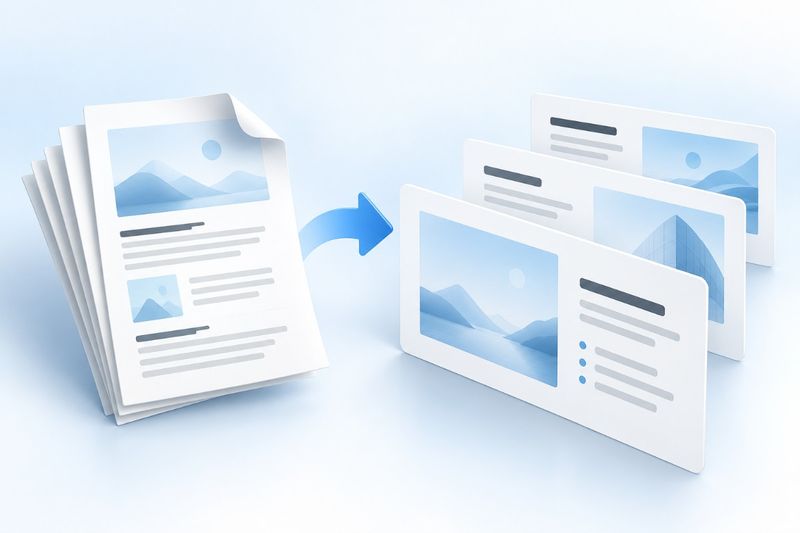
After converting PDF to PPTX, text can usually be edited as positioned text objects, but this does not restore the layer structure of the original PowerPoint. PDF Smart Kit creates slides from PDF pages: extractable text is placed into positioned objects whenever possible, while non-text content becomes slide artwork. If a scanned PDF has no extractable text layer, its text will not automatically become editable.
First, Decide What Type of PPT You Need
PDF-to-PPT conversion is useful if you want to place a PDF in a presentation and continue presenting it. However, if you want to fully restore the original presentation's animations, transitions, master slides, editable graphics, and notes, the PDF does not contain enough information. Conversion cannot recreate these elements from nothing.
To share the file in PDF format, you can use Compress PDF. If the source file is actually a Word document, keep the DOCX whenever possible, or use PDF to Word to process the text layer. Do not treat conversions between different formats as the same task.
How to Convert PDF to PPT
Prepare a PDF, open PDF to PowerPoint, upload the file, and wait for the conversion. The tool creates slides in PDF page order, with each page becoming one slide, and outputs a PPTX file.
After opening the PPTX, first check the slide dimensions and number of slides, then click through several representative slides. Make sure titles, body text, footers, and images are positioned appropriately before trying to edit the text. Verifying the structure before reformatting prevents you from editing every slide only to discover that the PDF is scanned.
What Content Is Usually Editable?
In a PDF with a text layer, text may be divided into multiple positioned objects. You can change the text, font size, or color, but the objects may not retain the logical relationships they had in the original Word or PowerPoint file. A title that appears to be a single object may consist of multiple text fragments.
Non-text content is usually preserved as artwork on the slide. Photos, scanned images, complex vector shapes, and background textures are better suited to being moved or cropped as a whole rather than converted into separate shapes. If you need to redraw specific elements, you will often need the original design file.
Why Can't Text in a Scanned PDF Be Edited Directly?
A scanned document is essentially an image. If the PDF has no extractable text layer, the converter can only place the page artwork on the slide and cannot identify each character in the image. In this case, you can first use PDF OCR Generate a text layer, but do not mistake OCR for automatically reconstructing a presentation.
When invisible OCR text is detected, the current implementation preserves the full-page image and places the corresponding text as transparent text objects. Editing these objects may not change the text visible on the page because the original text remains in the background image. To change visible content on a scanned page, you generally need to recreate the text boxes from the recognition results and modify the original background.
OCR is not 100% reliable. Tables, stamps, handwriting, low-resolution pages, and multi-column layouts can all cause recognition errors. Treat OCR results as an editable draft, and proofread proper nouns and numbers page by page.
Four things you must check after conversion
First, check the fonts. Missing fonts and differences in PDF glyph metrics can cause text to wrap or overflow its text box. Titles are most likely to be cut off, so check titles and large numbers first.
Second, check the page proportions. The current implementation sets the entire presentation size using the aspect ratio of the first PDF page, then fits subsequent pages proportionally. Documents mixing portrait and landscape pages may have blank margins, and layouts may also need adjustment for 16:9 conference displays. Do not simply stretch the full-page artwork, as this will distort both graphics and text.
Third, check the text order. A PDF's reading order does not always match its visual layout, and multi-column documents may be split into multiple objects. When copying text or editing paragraphs, make sure content from the right column is not inserted into the middle of the left column.
Fourth, check the artwork clarity. Full-page artwork is more likely to become blurry when enlarged, cropped, or projected. If important numbers and small text can only be displayed as images, it is better to recreate the slide from the source material than to force an enlargement.
Frequently Asked Questions
Why is all the text in one image after converting PDF to PPT?
The original PDF may have no text layer, or the text may be embedded in the page artwork. First try selecting the text in a PDF reader. If it cannot be selected, OCR is usually required.
Can the original animations be restored?
No. A PDF stores the final page output and does not contain PowerPoint animations, transitions, audio, video, or the semantics of the original objects.
Why does each PDF page become one slide?
This is how the current tool processes files, helping preserve page order and visual relationships. However, it also means that a complex page may contain a great deal of content that must be separated manually.
How can I make the converted text look more like a real PPT?
First delete unnecessary text objects, then recreate the titles, key points, and charts to suit the presentation's purpose. The conversion output is a useful starting point, not a complete restoration of the original slides.
Example: Converting a portrait report into a landscape presentation
Suppose the original PDF is a ten-page A4 report with one page containing a large landscape table. After converting it to PPTX, first confirm that there are ten slides, then check whether the large table has been shrunk too much. This type of file works well as source material but not as a presentation for direct projection. You can split one report page into two slides, “Conclusion” and “Evidence,” retaining only what the audience needs to read.
When editing, save a separate version and keep the unmodified converted file for comparison. If visible text cannot be edited, first determine whether it is a text box, a transparent OCR object, or background artwork. Then decide whether to edit the text or recreate it, avoiding repeated work on the wrong object.
AI concept illustration notes
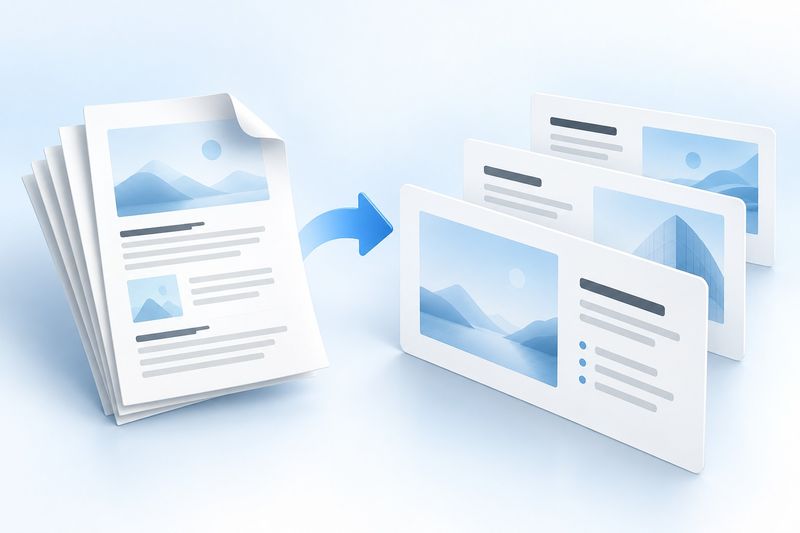
The illustration shows a stack of PDF pages turning into three blue-and-white slides, conveying the concepts of “page-by-page conversion” and “separating text from artwork.” The image was generated by Cherry Studio. It is not a screenshot of PowerPoint operations and does not imply that animations or original layers can be restored.
FAQ: When to Use PDF-to-PPT Conversion
Q: What types of files are best for conversion? A: PDFs with a clear text layer, consistent page proportions, and artwork that does not rely on complex animations.
Q: Can I tell whether the text will be editable before conversion? A: Try selecting and copying the text in a PDF reader. If it cannot be selected, consider using OCR first.
Q: If a page contains a lot of content, can I still edit it after conversion? A: Text objects may be editable, but the page structure will remain complex and usually needs to be rearranged.
Q: What if the final deliverable needs to be a PDF? A: After proofreading the PPTX, export it as a PDF again, or simply keep the original PDF. Do not treat the intermediate converted file as the final version.