PDF to PDF/A-2b: Pre-Archive Checks, Rasterization Limits, and Use Cases
When should you convert PDF to PDF/A-2b? Learn how this tool archives pages, the limitations of rasterizing text and forms, and how to check page order, clarity, and metadata before submission.
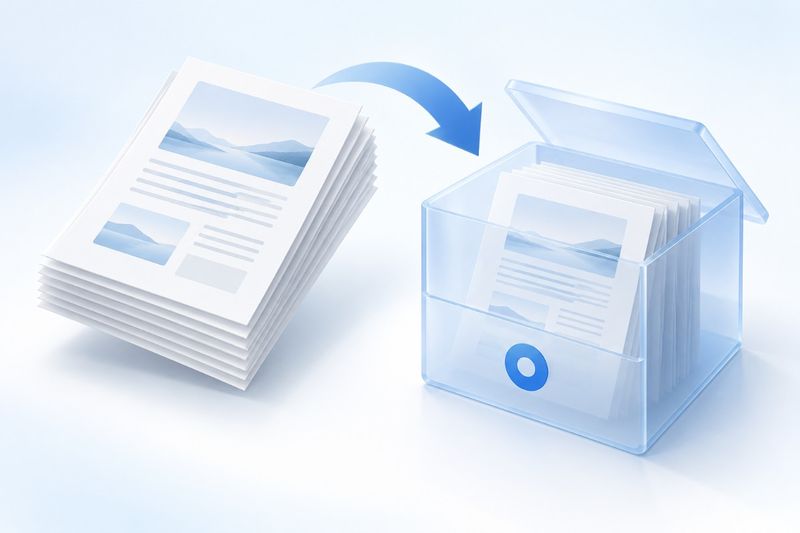
Converting PDF to PDF/A-2b is suitable for documents that require long-term preservation, a fixed page appearance, and a consistent color profile. PDF Smart Kit's PDF/A tool rasterizes the pages of the input PDF and then generates PDF/A-2b output. It currently uses 300 DPI, lossless encoding for the rasterized page images, and an embedded sRGB color profile. It preserves page appearance and order, but it is not a fully editable copy of the original PDF.
Understand the Trade-Offs of PDF/A-2b First
Archival formats prioritize reliable page rendering in the future, not the preservation of every interactive feature. The current implementation turns text and forms into page images, which may remove selectable text, links, vector details, and original metadata. Therefore, keep the archived file separate from the original PDF. Do not use the PDF/A output as a replacement for the only source file.
If you only want to reduce the file size, use Compress PDF; if you need to reorder pages, first use Organize PDFinstead. If scanned files need searchable text, separately consider PDF OCR, because PDF/A conversion does not automatically turn images into searchable text.
How to Convert PDF to PDF/A
Prepare a PDF, open PDF to PDF/A, upload the file, and wait for the archival conversion to finish. The downloaded file will usually have the -pdfa suffix. Do not overwrite the original file. We recommend saving it with a filename that includes the date and version number.
Open the output file and confirm that your reader displays every page correctly. Then compare it with the original PDF page by page, checking the page count, order, orientation, edges, and image clarity. The first archival check is that no pages are missing; only then should you assess whether the information remains suitable for future use.
Pre-Conversion Archival Checks
First, confirm that the original PDF is finalized. PDF/A output is unsuitable as a working file for ongoing edits, so verify the content, page numbers, and attachments before conversion.
Second, record the source information. The filename, archive date, business reference number, and original file location can be stored in an external archive record. Page rasterization may not preserve the original metadata, so do not rely solely on the PDF's internal properties.
Third, check the page size and resolution. The current setting is 300 DPI, so high-resolution images and oversized pages will generate large amounts of pixel data. The tool is limited to 32 megapixels per page; oversized engineering drawings must first be split in the source file or reduced in page size.
Fourth, keep a copy of the original. The archival version is suitable for long-term viewing, but the original PDF may still be needed for subsequent OCR, link tracking, or text copying.
What to Check After Downloading
First, verify the page count and order. Then zoom in to inspect small text, fine lines, stamps, and image edges. Rasterization turns text into images, so text may no longer be selectable, copyable, or searchable in a PDF reader. This is an expected limitation of the current implementation, not file corruption.
Next, check links, forms, and annotations. If your workflow depends on clicking links, completing forms, or copying fields, the PDF/A output may not be suitable as a working file. You can save both the original interactive PDF and the PDF/A archival version, and document their relationship in the archive record.
Frequently Asked Questions
Why can't I select text in the PDF/A file?
The current tool rasterizes pages, turning text and forms into page images, so they may no longer be selectable or copyable. If search is required, keep the original PDF separately or run OCR.
Will links be preserved during conversion?
Do not assume that links, forms, annotations, and original metadata will all be preserved. Test the links after downloading. If links are essential to your workflow, keep the interactive version of the file.
Why is the archival file larger than the original PDF?
Page images at 300 DPI may be larger than the original, well-compressed vector PDF. Archival stability must be balanced against file size. If necessary, use Compress PDF to create a lightweight reading copy, but do not overwrite the archival master.
Can PDF/A-2b replace legal certification?
No. PDF/A defines file-format and archival constraints; it is not an electronic signature, timestamp, or legal certification. Whether it meets an organization's requirements depends on the applicable archival policies and review procedures.
Is format validation still required before archiving?
Being able to open a file in a PDF reader does not mean it has passed PDF/A compliance validation. If the receiving organization requires PDF/A-2b, use its designated validator or an appropriate PDF/A validation tool to verify the final file and retain the report. This article describes the intended output based on the current implementation. It does not mean that any user file has passed validation or guarantee compliance with every organization's archival policies.
Note that “lossless” refers to the page-image encoding used by the current archival process; it does not mean that every feature of the original PDF is preserved without loss. A resolution of 300 DPI also cannot add details that do not exist in a blurry scan. If a photo of a paper document is very blurry, rescan it instead of repeatedly converting it in the hope of making the text clearer.
Example: Save the Archival Master, Original, and Reading Copy Separately
For a finalized annual report, you can retain the original PDF, the PDF/A archival master, and a lightweight reading copy for email, while recording that all three correspond to the same version. Compression, OCR, or further editing may affect format compliance, so the final file to be archived must be revalidated after these operations; an earlier report cannot be reused.
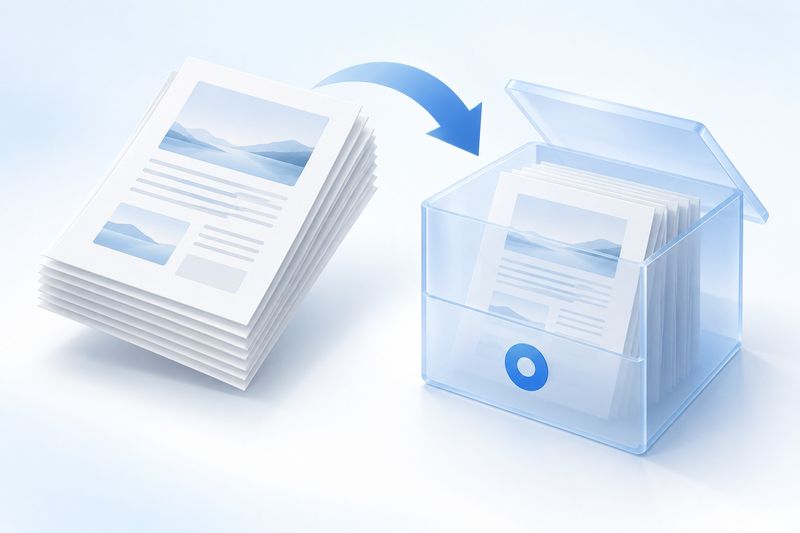
AI Concept Illustration Note
The illustration shows white pages entering a light-blue archive box, representing the concept of preserving a fixed page appearance. Generated by Cherry Studio, it is an AI concept illustration—not an archival validation report, legal seal, or screenshot of a real system.
FAQ: How Can Archival and Working Versions Coexist?
Q: Should I delete the original PDF? A: No. The original PDF may contain a text layer, links, and metadata, so it should be stored separately from the PDF/A version.
Q: Can I still perform OCR after conversion? A: You can use the PDF/A as the image source for OCR, but keeping the original text-based version is usually better for accurate searches.
Q: How should I name archive files? A: Use stable business IDs, dates, and version numbers. Avoid vague names such as “Final Version” or “New File.”
Q: What if a single page is too large? A: First check the page dimensions and pixel count. This tool has a limit of 32 megapixels per page, so oversized pages must be handled in the source file.
Downloadable test materials
These synthetic samples contain no customer documents. A sample result does not establish an accuracy rate or guarantee other files.
· Chromium / Chrome 156.0.8078.74 · v1.0.0
- Inputs: digital-input.pdf · Outputs: archive-output.pdf