How Do I Combine Multiple PDFs? Arrange Them in Order, Then Create a Single File
Organize separate PDFs into one submission: check the files and page counts, adjust the order and rotation, merge them, and then verify the pages and links in the output.
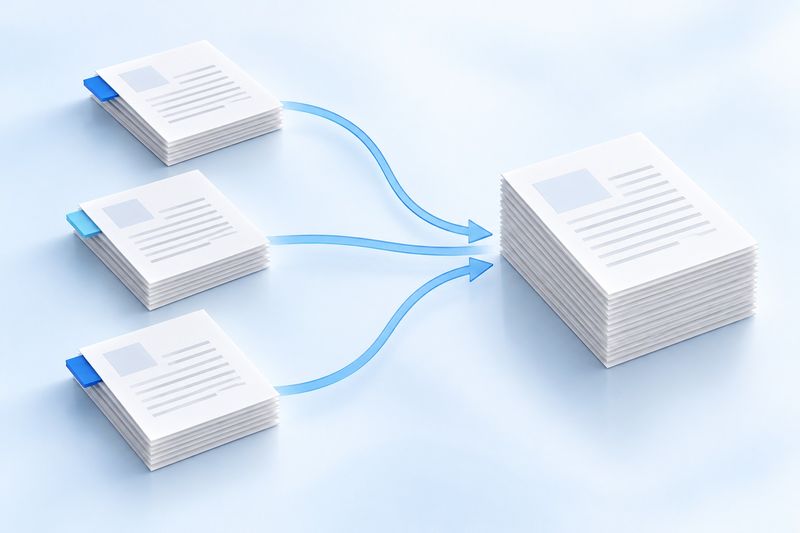
Application materials may be split across three PDFs, the main project report and its attachments may be in separate files, and reimbursement receipts may be scattered across different folders. Sending them individually is not difficult, but the recipient has to switch back and forth between files and is more likely to overlook an attachment.
If the recipient requires a single file, you can use PDF Smart Kit’sMerge PDFtool. Check each file, adjust the order, and then generate a new PDF. Processing takes place in your current browser, so the selected PDF content does not need to be uploaded to the application server.
Before You Begin, List the Intended Reading Order
Suppose you are preparing a project submission. You could organize it as “Cover—Project Description—Supporting Attachments.” Do not rely on the order in which files happen to appear in a folder, and do not treat names such as “Final” and “Final 2” as a reliable sorting method.
If you have many files, you can first rename them to 01-Cover.pdf,02-Project-Description.pdf,03-Attachments.pdf. This makes them easier to check and lets you use the workspace’s filename sorting feature. Regardless of the sorting method you use, review the thumbnail queue again before generating the file.
The merge tool currently accepts up to 30 PDFs at a time, with a maximum total size of 250 MB. If a file is password-protected, damaged, or cannot be opened normally, fix the original file first instead of expecting the merge process to repair it automatically.
Step 1: Select the PDFs to Merge
OpenMerge PDF, then click “Select PDF Files” or drag the files into the selection area. After the files are loaded, the workspace displays their filenames, thumbnails, and page counts.
Check the files against your materials list: Did you accidentally select an older version twice? Did you forget an attachment that should follow the main document? If a file’s page count differs from what you expected, open the original and verify it before proceeding with the merge.
Step 2: Adjust the File Order and Check Page Orientation
Drag the file cards to change the order in which the files appear in the final PDF. You can also sort by filename and then review the result. If you find an unnecessary file, remove it from the queue to avoid sending internal notes or extra attachments.
It is important to distinguish between two types of “sorting”: the merge tool changes the order of entire files. If pages 2 and 3 within a PDF are reversed, first useOrganize PDFto reorder that file’s pages, and then merge the files.
Similarly, rotation in the merge workspace applies to the entire file. If only one page has the wrong orientation, do not rotate the whole file with it. Instead, extract that page, rotate it, and then reorganize the document.
Step 3: Merge and Download the New File
After confirming the file order, page counts, and orientation, click the merge button. When processing is complete, download the generated PDF and give it an easy-to-recognize name, such as Project-Materials-Submission-Version.pdf.
Do not send the file simply because it was “generated successfully.” Open the downloaded file and quickly review it from beginning to end, paying particular attention to where files meet: Is the last page of one file immediately followed by the expected first page of the next?
After Merging, Check These Four Things
- Make sure no pages are duplicated, missing, or incorrectly oriented.
- Make sure the main document, attachments, and supporting materials are in the correct order.
- Make sure both landscape and portrait pages are easy to read.
- Make sure important table-of-contents bookmarks, links, and interactive forms still meet your requirements.
Merging primarily solves file organization issues. It does not rebuild PDFs from different sources as a single original document with consistent formatting. Document-level bookmarks, links between files, and some interactive features may not be fully preserved. If your materials depend on these features, checking the output is especially important.
Frequently Asked Questions
What if the merged file is still very large?
Merging is not compression. First check whether unnecessary pages were included, then considerextracting only the pages you need. If compression is necessary, you can useCompress PDF, but note that the current compression process rasterizes pages, which may affect text selection, links, and forms.
Can I directly merge photos and PDFs together?
The merge tool accepts PDFs. You can first useJPG to PDFto convert photos into a PDF, and then merge it with the other materials.
Will the original files be overwritten?
The tool generates a new result file for you to download. We recommend keeping the originals and not deleting them until you have confirmed that the submission version is correct.
The most effective step when organizing materials is usually not clicking “Merge” at the end, but deciding in advance the order in which the recipient should read them. When you are ready, you canStart Merging PDFs.
Downloadable test materials
These synthetic samples contain no customer documents. A sample result does not establish an accuracy rate or guarantee other files.
· Chromium / Chrome 156.0.8078.74 · v1.0.0
- Inputs: digital-input.pdf, merge-second-input.pdf · Outputs: merged-output.pdf