How to Save Selected PDF Pages: Extraction and Order Checks
If you only need a few pages from a long PDF, extract them into a new file. Learn how to select consecutive or nonconsecutive pages, preserve the original page order, and check bookmarks, signatures, and privacy.
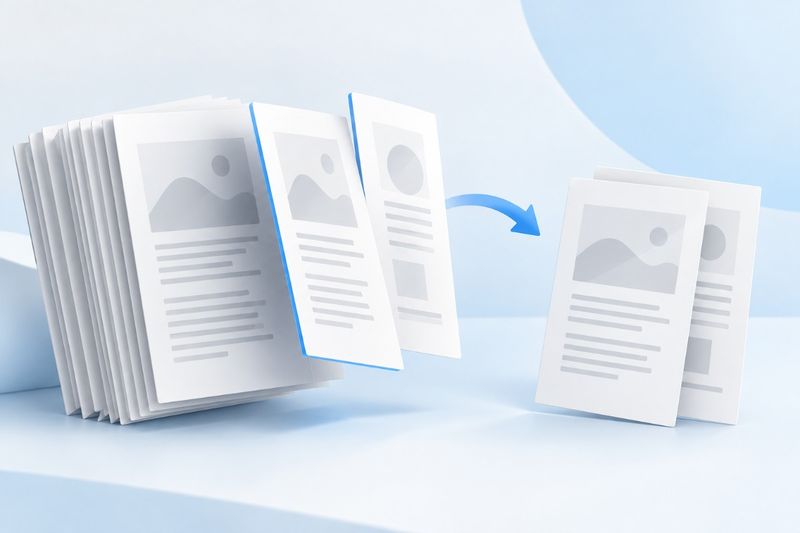
To save a few pages from a long PDF separately, select them and extract them into a new PDF. PDF Smart Kit's extraction tool supports consecutive and nonconsecutive pages. The current web interface outputs selected content in the source file's page order. It neither deletes nor modifies your local original, nor automatically creates a separate attachment for each range.
When to Extract Pages
Use this feature to select instructions for a specific model from a product manual, send part of a meeting agenda to a colleague, or extract a report's cover and conclusion. Extract PDF Pages. The goal is to create a more focused copy, not to edit or reformat the entire document.
Before extracting pages, confirm what the recipient needs. Sending only a chart may omit units, the statistical scope, or notes. Sending only a contract's signature page may remove the context of the relevant clauses. Fewer pages are not always better. Include enough explanation to make the information understandable, and confirm that you have permission to share it.
First Confirm the File Page Numbers
The first page in a PDF is page 1, even if it is an unnumbered cover. A page labeled “Page 3” in the document may not be the third page in the file; covers, tables of contents, and inserts can shift the numbering.
First locate the starting content you need, then check the thumbnail numbers to confirm the range. If a manual begins with a two-page cover and table of contents, printed page 1 may correspond to file page 3. You must verify this mapping manually; do not assume the tool will recognize printed page numbers and convert them automatically.
How to Select Consecutive and Nonconsecutive Pages
To extract file pages 4 through 8, enter 4-8. To include the cover and selected body pages, enter 1,4-8. You can also click thumbnails individually, check their selection status and count, and then begin processing.
The current web interface normalizes selections to the source file's order, so do not enter 8,2,5 to request delivery in the order 8, 2, 5. To customize the output order, first extract the pages you need, then use Organize PDF to reorder the new file. Extraction determines which pages to include; organization determines how they are arranged.
Steps to Extract Selected Pages
- Keep the original PDF and list the content the recipient needs along with its file page numbers.
- On the Extract PDF Pages page, select a file and wait for the page previews to load.
- Enter a range or click the thumbnails, then verify every selected page and the total count.
- Start the extraction, download the new PDF, and reopen it to check the result instead of relying only on the success message.
- Save it with a filename that identifies the content and version, then send it to the recipient.
If a range exceeds the source file's total page count or is entered in descending order, the tool will reject it. You do not need to copy a full natural-language description; enter only valid page numbers and ranges. The thumbnails help ensure that numbers mentioned in the text are not mistaken for actual page numbers.
Why is the output a PDF rather than a ZIP file?
The extraction tool places all selected pages into one new PDF, making it suitable as a single attachment. If you want “pages 1–3 in one file and pages 4–6 in another,” use Split PDF to split by range instead of treating extraction ranges as file grouping rules.
Conversely, if you only want to discard a few unnecessary pages and keep all the others,Delete PDF Pages requires fewer selection steps. The key difference among the three tools is the result: extraction keeps selected pages, deletion excludes selected pages, and splitting creates multiple files.
What information may change after extraction?
Extraction generally preserves supported page content and page sizes, but it does not copy every part of the document's structure. Links to pages that were not extracted lose their original targets, and document-level tables of contents, bookmarks, forms, and other interactive features should also be checked again.
For example, a page may say “See the appendix for detailed specifications,” but if the appendix is not included in the new file, the text remains while the reading context becomes incomplete. Include any necessary appendices, or clearly state in the delivery notes that the file is an excerpt so the recipient does not mistake it for the complete document.
How can I check that no nonconsecutive pages are missing?
Using 1,4-6,10 as an example, the output should contain 5 pages corresponding, in order, to pages 1, 4, 5, 6, and 10 of the source file. Open the result and compare each page's heading or content. This is more reliable than merely checking that it has 5 pages, since the count can be correct even if one of the wrong pages was selected.
Also check the beginning and end of each excerpted section. A table spanning multiple pages may show its total on the next page, while an image caption may appear at the bottom of the previous page. Keep enough surrounding context when extracting; do not remove a page merely to shorten the file if that leaves the data without its source or explanation. This requires human judgment.
Extraction does not automatically redact data or carry over signatures
A new file contains only the selected pages, but this does not mean all private information on those pages has been removed. Names, addresses, QR codes, visible comments, or form values may remain. Before sending the file, review every page based on what may be disclosed. Extracting only a few pages is not a substitute for a privacy review.
If the source file has a certificate-based digital signature, you cannot claim that the excerpt inherits the complete original file's verification status. When the identity of the original file must be preserved, retain and provide the originally signed file as required. Clearly label the newly extracted version as a reading excerpt rather than a replacement for the original.
How should file size and clarity be assessed?
Extraction copies supported content page by page, so there is no need to take screenshots of the pages and combine them into a file. The output size generally depends on the selected pages and their resources, but it is not guaranteed to decrease in proportion to the page count. Even a single page may contain high-resolution images or shared font resources.
When finished, check that small text, vector lines, and selectable text are fit for purpose. Further compression or conversion to images is a separate step with additional quality trade-offs. Do not skip reading and verifying the content just because the attachment meets the size limit.
Frequently Asked Questions
Does extraction remove pages from the original PDF?
No. The local original is not modified directly; you download a newly generated copy. However, you should still keep the original file and avoid manually overwriting it when saving.
Can the same page be selected twice so it appears twice in the result?
The current interface processes each selected page only once. Do not use duplicate page numbers as a way to copy pages. If you need to insert duplicate pages, use a tool that explicitly supports this.
Can I extract pages from multiple PDFs into one file?
Each extraction task currently uses a single source PDF. You can extract pages from multiple sources separately, then use Merge PDF to combine them, and recheck the order and versions afterward.
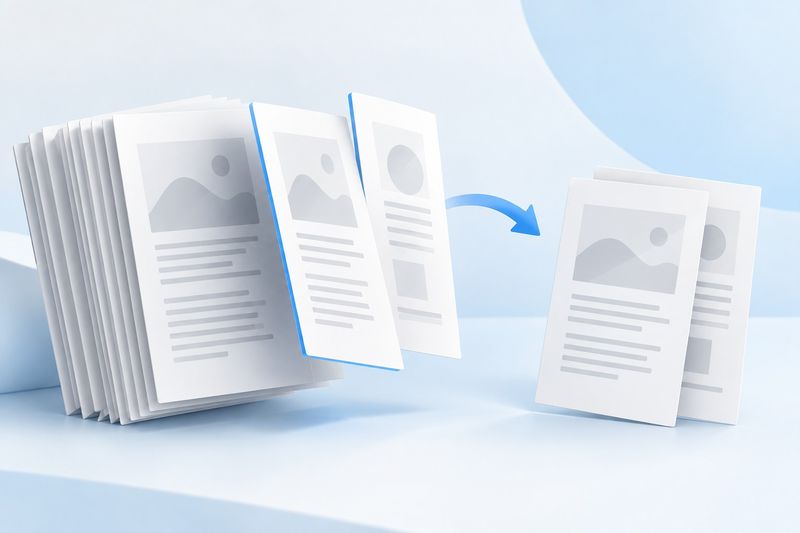
This AI-generated conceptual image shows selected pages being saved as a separate copy; it does not mean the source file is deleted or modified.