How to Convert Excel to PDF Without Layout Issues: Check Sheets, Page Breaks, and Print Areas
Why do worksheets, column widths, and page breaks change when converting an Excel workbook to PDF? Learn what the converter preserves, its limitations, and how to check each sheet and wide table for truncation.
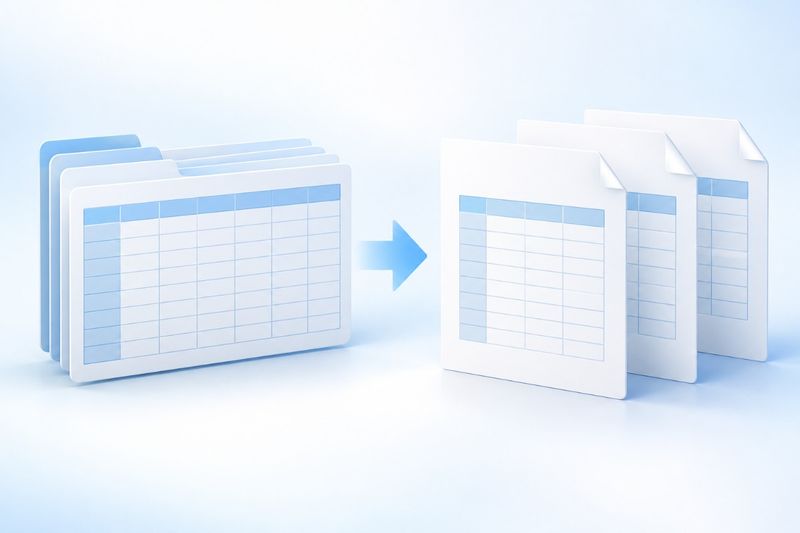
The biggest risks when converting Excel to PDF are not whether the file can be created, but whether every worksheet is complete, wide tables are cut off, and page breaks are easy to read. PDF Smart Kit's Excel to PDF tool accepts XLSX files, reads their worksheets and cell content, then renders and paginates them in order. Worksheets and PDF pages do not necessarily have a one-to-one relationship. It is useful for quickly sharing spreadsheet results, but it is not equivalent to the print preview in desktop Excel.
When to Export XLSX as PDF
If you need to send monthly summaries, expense lists, inventory sheets, or approval attachments, PDF fixes the pages recipients will see. If recipients need to filter, calculate, inspect formulas, or edit data, keep the XLSX file as well; do not treat the PDF as a calculable spreadsheet.
To combine multiple PDF files, use Merge PDF; if the exported charts or wide tables create a large file, use Compress PDF to reduce the attachment size. To convert PDF content back into worksheets, see PDF to Excel, but the two processes work differently.
Basic Steps for Converting Excel to PDF
First, prepare an .xlsx file and remove any worksheets and temporary data you do not need to share. Open Excel to PDF, upload the workbook, wait for conversion to finish, and then download the PDF. The current interface processes one workbook at a time, and multiple worksheets are included in workbook order.
After downloading, do not merely confirm that the file opens. Check the PDF page count first, then verify that every worksheet appears. If a worksheet in the XLSX file is empty or contains only hidden helper data, confirm whether it should be included in the delivered file.
Pre-conversion Check: Make the Spreadsheet Print-Ready
First, remove any worksheets, helper columns, and internal notes that should not be shared from the delivery copy; do not merely hide them. The current implementation processes worksheets and rows without treating hidden status as a privacy boundary. Before exporting, create a delivery copy of the workbook and retain only content that may be shared. Keep the source data in the original workbook.
Second, check column widths and long text. Overly long column headings or numerous notes columns can force the page to scale down, making the final text difficult to read. Shorten headings, split up notes, or plan for landscape pages instead of simply squeezing every column onto one page.
Third, verify the displayed formula values. The tool does not run the Excel calculation engine and prioritizes saved formula results; if no result is available, the formula text may appear. If calculated results must be delivered, refresh the calculations in Excel and save the file first. For external links, also confirm that the data has been updated. Date, percentage, and currency formats cannot be judged solely by how the source spreadsheet looks, so check them again after export.
Fourth, check charts and complex formatting. The current implementation handles basic row and column content more reliably, while charts, complex conditional formatting, print areas, and macros may look different from desktop Excel. If charts present the key conclusions, consider exporting screenshots separately or adding an explanatory page to the PDF.
How to inspect each page after downloading
First, check the left and right edges of every page to ensure the first and last columns have not been cropped. Then check the footer and page breaks to make sure a totals row is not left by itself on the next page. For tables spanning multiple pages, confirm that readers can tell which data group each header belongs to.
Next, compare the worksheet names, key totals, and date ranges with the XLSX. A PDF is a visual deliverable; neatly displayed numbers are not necessarily correct. The safest approach is to spot-check several key figures and compare the PDF side by side with the source workbook.
Limitations of charts, macros, and print areas
A print area is an Excel setting that controls the output range, but a worksheet rendered in a browser may not fully follow desktop Excel's print area rules. If the PDF contains extra blank pages, do not immediately delete source worksheets. First check whether nonempty cells far from the main table are expanding the canvas.
Macros do not continue running in a PDF. Complex charts, external data connections, and special cell formatting may also be simplified. If the PDF is intended for a formal report, finalize the figures and check after export that the charts still convey the same conclusions.
Frequently Asked Questions
Why is one worksheet split across many pages?
Long tables are split according to page height after rendering, and worksheet boundaries may not align with page breaks. Wide tables may be scaled down or have display issues at the edges. Remove unnecessary columns or split them into narrower tables first. If exact page orientation, print scaling, or repeating headers across pages are essential, use desktop Excel's print or export feature instead.
Why don't charts look the same as they do in Excel?
The current tool prioritizes supported cell values, basic row and column order, and worksheet names. Charts and complex formatting may change. Check important charts separately in the PDF and add them as images if necessary.
Can formulas still calculate after conversion?
No. A PDF cannot be used as a calculation worksheet. It records the visual result at the time of export; keep the XLSX if further calculations are needed.
Can I convert multiple XLSX files at once?
The current interface processes one workbook at a time. If you have multiple files, convert them separately, then use Merge PDF to arrange them in the desired delivery order.
Example: How to check that nothing is missing from three worksheets
Suppose the deliverable contains three worksheets named “Details,” “Summary,” and “Notes.” Do not assume the output will be a three-page PDF. A long Details sheet may span several pages, while a short Notes sheet may appear on the same page as the preceding section. Locate all three headings, check the first row, last row, and key totals in each section, and then record the final page count. This is an example of the inspection process, not actual test results for a specific file.
Also confirm that dates are not displayed as unclear raw values and that percentages have not lost their percent signs. The current output fixes the viewing result as page images and cannot be filtered or recalculated. If the recipient needs to analyze the data, provide a separate sanitized copy of the XLSX.
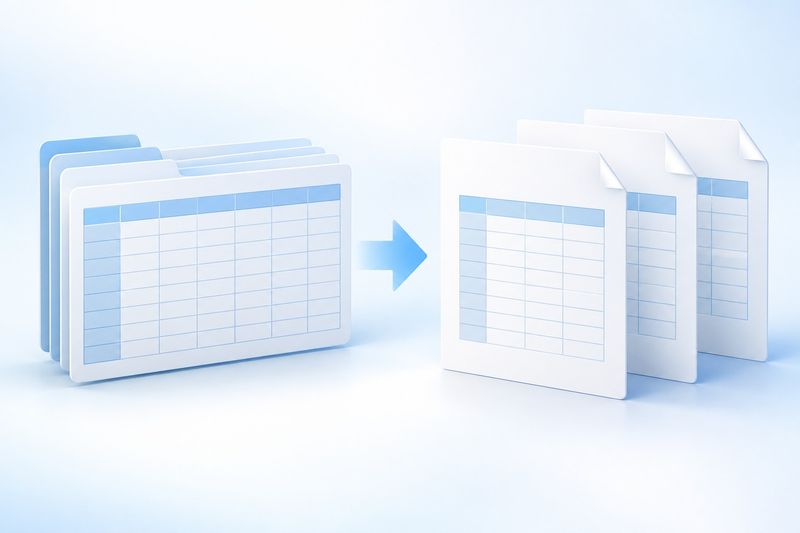
AI concept illustration description
The illustration shows a spreadsheet grid turning into multiple white pages to represent Excel-to-PDF conversion, with separate pages suggesting multiple worksheets. This AI concept image was generated by Cherry Studio. It is not a screenshot of desktop Excel and does not imply that all print areas and charts can be reproduced automatically.
FAQ: Minimum Pre-Export Checklist
Q: Should hidden columns also be removed? A: Yes. Hidden content may be included in the conversion. Before delivery, create a copy containing only content that can be shared publicly; do not treat hidden content as redacted.
Q: How can I tell whether the PDF is ready to send to a client? A: Check the page count, margins, totals, date range, charts, and repeated table headers across pages. Also check readability on a phone or small screen.
Q: What if the exported file is too large? A: You can use Compress PDF, but recheck the clarity of small text and charts afterward.
Q: Can a PDF be restored to a spreadsheet with working calculations? A: You can try PDF to Excel, but this is an extraction and cleanup process. It will not restore the original workbook's formulas, macros, or complete chart logic.