How to Delete Blank PDF Pages: Page Order, Duplex Scans, and Accidental Deletion Checks
Not every blank page in a scanned PDF should be deleted. Distinguish PDF page order from printed page numbers, manually select unnecessary pages, and check duplex scans, table of contents references, and the output copy.
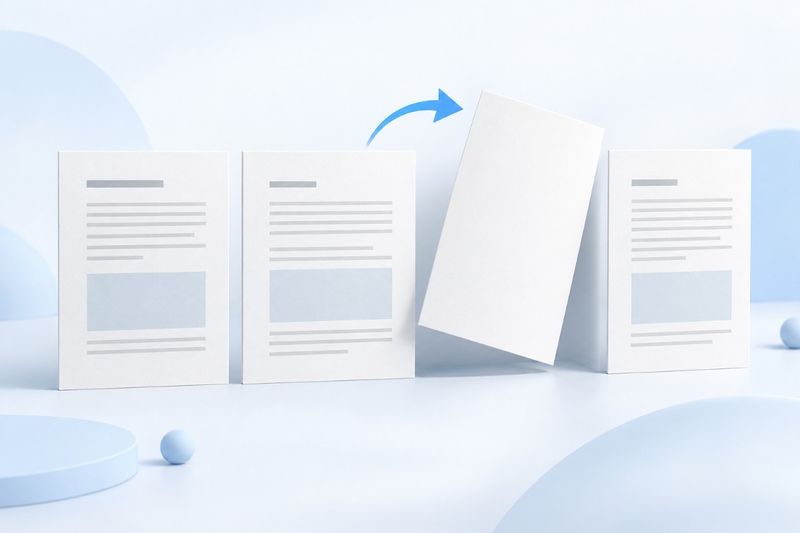
Before deleting blank PDF pages, first confirm that they contain nothing you need to keep, then select them according to their actual order in the file. PDF Smart Kit lets you manually delete pages using thumbnails or page ranges and creates a new PDF containing the remaining pages. It does not automatically detect blank pages or determine whether a blank page is needed for duplex printing or as a chapter divider.
Why a Page That Looks Blank May Not Be Unnecessary
Duplex scanning often captures the back of each sheet. Some backs are completely blank, while others may contain faint notes, stamps, or show-through. Small thumbnails can make content near the edges hard to see. Before deleting a page, zoom in and inspect its header, footer, and margins instead of judging it only by whether the center contains text.
Other blank pages are part of the document's layout. For example, if a chapter must begin on a right-hand page, the preceding page may be left blank. Deleting it may not affect on-screen reading, but it will change the left-right arrangement when printed double-sided. First decide whether the output is intended for on-screen reading, single-sided printing, or duplex binding, then decide whether to keep these pages.
PDF Page Order Is Not the Same as Printed Page Numbers
The tool counts pages in their PDF order, so page 1 is the first page in the file. The body page labeled “1” may be preceded by a cover, copyright page, and table of contents, so you cannot use printed page numbers directly as the selection range.
Suppose the cover, instructions, and table of contents occupy the first three pages. Body page 2 would then actually be page 5 of the file. First locate the target in the thumbnails, then verify the displayed PDF page number. This example only explains the numbering offset; it does not mean the tool can automatically interpret printed page numbers or Roman numerals.
Steps to Delete Blank PDF Pages
- Keep the complete original PDF and work from a copy prepared for editing.
- Zoom in to verify the pages to remove, then select them using the thumbnails or by entering a range.
- Before processing, check the number of selected pages and their positions, and make sure at least one page remains.
- Download the new file, check the first and last pages, chapter transitions, and total page count, then name and save it according to its intended use.
Here, you select the pages to delete, not the pages to keep. If you only need to keep two or three pages from a long document, use Extract PDF Pages instead. This is more intuitive and reduces the chance of missing or adding pages when selecting everything else.
How to Enter Consecutive and Nonconsecutive Pages
For consecutive pages, enter 3-5, which represents pages 3, 4, and 5 in the file. To delete only pages 2 and 7, enter 2,7; for a mixed selection, enter 2,5-7. Use half-width digits, commas, and hyphens, and make sure the range does not exceed the actual page count.
Do not enter a descending range to indicate deletion order, such as 7-5; deleting pages does not require reordering them. This tool also prevents you from deleting every page and creating an empty document. If a range error occurs, check the numbers and total page count instead of repeatedly clicking the process button.
Do not delete all even-numbered pages from a duplex scan
“Even-numbered pages are usually the backs” is true only for certain scanning sequences and is not a universal rule. Some scans save all front sides first and then all back sides. If a page is missed or scanned twice, the odd-even pairing will be misaligned from that page onward.
A safer approach is to inspect adjacent pages, identify duplicates, rotated pages, or pages out of order, and then decide which ones to delete. If page orientation is incorrect, use Rotate PDF ; if pages are out of order, first use Organize PDF to rearrange them. Do not use bulk page deletion to conceal scanning-order problems.
Page count is more reliable than file size
For example, if 4 distinct pages are selected in a 24-page file, the output should normally contain 20 pages. After verifying this count, check that original pages 8 and 10 now connect correctly and that page 9 was not actually content. Entering the same page number repeatedly will not create another copy of that page, so count distinct actual pages when checking.
Blank pages may take up very little space, so a file that does not become noticeably smaller after several pages are deleted has not necessarily failed. Rebuilding the file may also change its internal storage, so file size alone cannot confirm whether pages were deleted correctly. Verify the output page count, content, and order instead.
Recheck the table of contents, bookmarks, and signatures
Deleting pages only changes the set of pages; it does not automatically update page numbers printed in the document’s table of contents. Links to deleted pages may lose their targets, and document bookmarks and other navigation structures may not be preserved unchanged. Before delivering a long report with a table of contents, verify each entry individually to ensure it remains meaningful.
Always retain the original file if it already has a certificate-based digital signature. The output is a newly generated copy; a visible signature image does not mean the original validation status remains valid. For documents that must preserve the validity of signatures or original records, follow the applicable document-management requirements before creating a reading copy.
Post-deletion delivery checklist
- Count: Does the number of distinct pages deleted match the output page count?
- Content: Are sections continuous? Were faint charts or notes on the back mistaken for blank pages?
- Order: Are the first and last pages and the transitions around every deletion correct?
- Purpose: For duplex printing, are chapter starting sides and binding relationships still appropriate?
- Version: Make sure the original and the cleaned-up copy are clearly distinguished, and confirm which one will be sent.
For example, name the copy “Document Name-Blank Pages Removed” while retaining the original scan date. The name only helps people identify the version; it is not a complete audit record. For business documents that require traceability, separately record which document page numbers were deleted and why.
Frequently Asked Questions
Can all blank pages be found automatically?
The current process requires manual selection; it does not automatically detect and confirm blank pages in bulk. Faint content, bleed-through from double-sided pages, and layout whitespace may look similar, so human judgment is still required.
Will deleting pages change the page numbers printed on the remaining pages?
No. Existing visible page numbers are not automatically rewritten. Even if the original page 10 becomes the eighth page in the output, the printed “10” may remain. Table of contents references must also be checked separately.
Can mistakenly deleted pages be recovered from the output file?
Do not rely on the output file to recover excluded pages. It is more reliable to return to the retained original PDF, select the pages again, and generate the correct copy. This is also why you should not overwrite the only original.
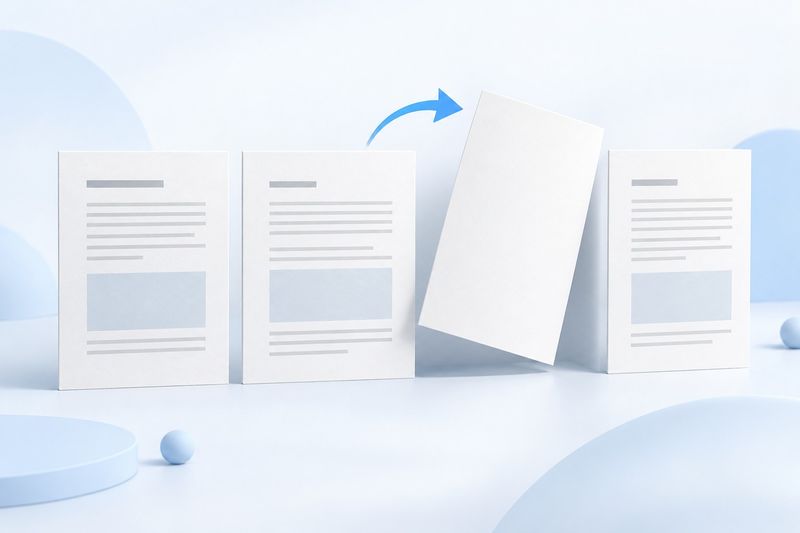
The image is an AI-generated conceptual illustration, not an automatic blank-page detection result or a screenshot of the tool in use.