How to Crop Wide PDF Margins: Margin Settings, Single-Page Application, and Safe Boundaries
How can you crop wide margins around a PDF without cutting off the main content? Learn about percentage settings for all four sides, applying changes to one or all pages, print checks, and why cropping only changes the visible area and cannot remove sensitive information.
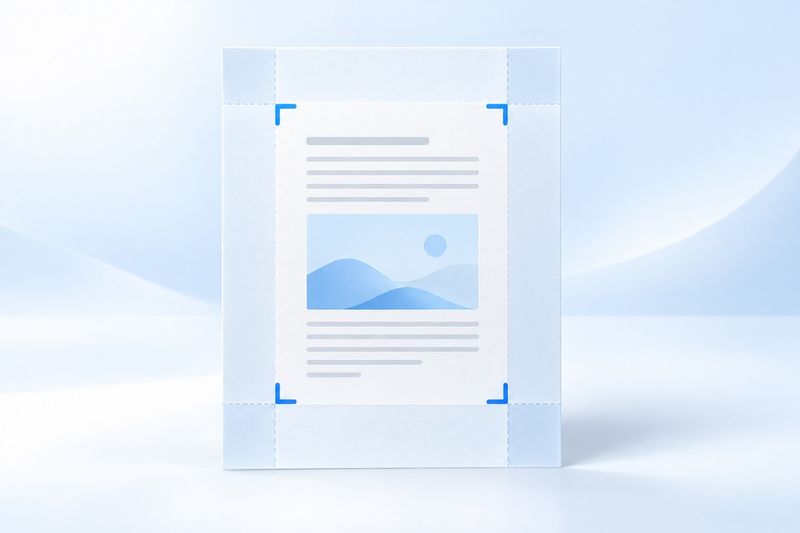
When the margins around a PDF are too wide, cropping can reduce the page's visible area so the main content appears more centered when viewed using Fit to Window. PDF Smart Kit lets you adjust the top, right, bottom, and left by percentage and apply the settings to a specified page or all pages. Important: Cropping changes the display boundary but does not securely delete sensitive content outside it, so it is not a substitute for redaction.
What Types of Margins Are Suitable for Cropping?
If a scan has excessive whitespace around it, an exported report occupies only the center of the page, or presentation materials have unnecessary blank space around the edges, first check whether cropping is appropriate. The goal is to reduce unnecessary whitespace, not to make the page edges hug the text. Leave enough breathing room around the main content, and preserve page numbers, footnotes, stamps, and table borders.
Sometimes “margins that are too wide” are actually a viewer display issue. For example, pages may be displayed side by side, the window zoom may be too low, or Print Preview may use a different paper size. First switch the display to Single Page or Fit to Width, confirm that the margins are part of the PDF page, and then modify the file.
Cropping Is Not Scaling or Compression
Cropping does not reflow the content. It only adjusts the page area normally displayed by the viewer, so the main content may appear larger when using “Fit to Window,” but the original glyphs and image resolution do not increase. A blurry scan remains blurry after cropping.
Cropping also does not guarantee a significant reduction in file size. Objects hidden outside the visible area may remain in the file, so you cannot assume that halving the margins will halve the file size. If the attachment exceeds a size limit, separately considerCompress PDFand learn how compression methods affect text, links, and forms.
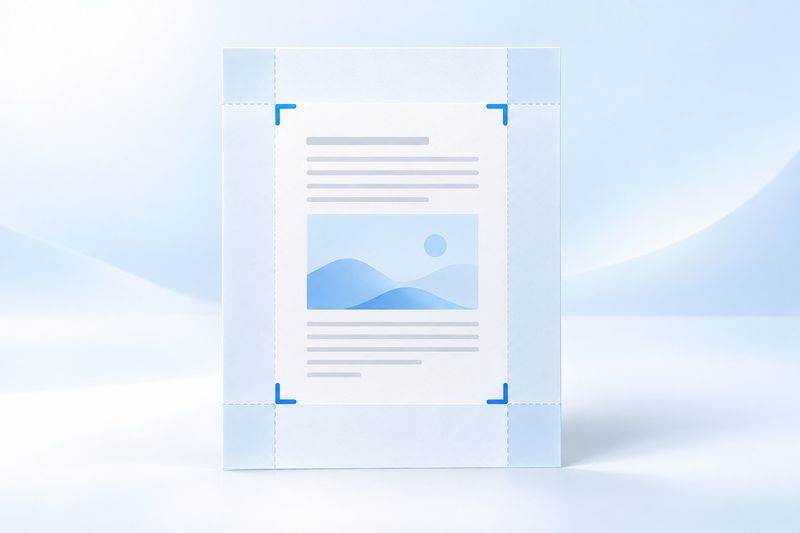
AI-generated conceptual illustration, not an actual screenshot.
Crop Excess Margins with PDF Smart Kit
Step 1: Select a File and Check for Page Differences
OpenCrop PDF, then select the file you want to process. First check the cover, pages in the middle, attachments, and the last page to confirm whether they use similar margins. Do not assume all pages have equally wide margins based only on the first page.
If the file contains both landscape tables and portrait body pages, or the binding margins alternate between odd and even pages, the same crop settings may not work for every page. We recommend cropping one page as a test, checking the result, and then deciding whether to apply it more broadly.
Step 2: Adjust the Percentages for All Four Sides or the Crop Box in the Preview
You can adjust the crop box in the preview area or fine-tune the top, right, bottom, and left margins. Margins are specified as percentages of the page dimensions rather than in millimeters: the left and right margins are calculated relative to the width, while the top and bottom margins are calculated relative to the height.
For example, cropping 5% from both the left and right retains 90% of the currently visible width; cropping 4% from both the top and bottom retains 92% of the height. These examples are only intended to aid understanding and are not recommended values for every file. Use the outermost actual content as the boundary, allow some margin, and then determine the values.
Step 3: Choose a Single Page or All Pages
If only one page has excessive whitespace, crop that page individually. Apply the crop to all pages only after confirming that the content on every page falls within the same safe area. The same percentage also represents different actual lengths on pages of different sizes.
The current tool supports either one specified page or all pages. It should not be understood as “automatically detecting different white margins on each page.” If several pages require different settings, keep the original file, process them in stages, and verify each page. For a large number of inconsistent pages, a dedicated workflow that supports per-page settings is more reliable.
Step 4: Download the Result and Check Content Near the Edges
After processing, download the new PDF and reopen it in a reader. Pay particular attention to the topmost heading, bottommost page number, right edge of tables, and content near the binding edge. If the crop boundary cuts off even one digit, an amount or ID number may become ambiguous.
If you need to print the file, also open Print Preview and check the paper size, Actual Size, and Fit settings. The visible page becomes smaller after cropping, so the print program may enlarge it to fill the paper. Looking correct on screen does not mean the actual print scale meets your requirements.
Why Can't Cropping Be Used to Delete ID Numbers or Monetary Amounts?
This cropping operation modifies the PDF's visible page boundary, commonly known as the CropBox. Content outside the boundary may still remain inside the PDF and may still be accessible by using other tools to adjust the boundary, extract content, or inspect the file structure.
Therefore, cropping a name, number, or signature out of view does not mean that the information has been removed from the delivered file. You cannot determine whether content has been securely deleted solely because it is no longer visible in the preview, nor can you rely only on screenshots.
To hide sensitive content, use a tool designed specifically for that purpose:PDF Redaction ToolAlso check the visible content, extracted text, and any other locations in the output that may contain sensitive information. For confidential or regulated materials, follow your organization's requirements to review attachments, comments, metadata, and other content instead of treating cropping as a complete sanitization solution.
Three Common Cropping Mistakes
Setting All Margins Too Large
The four margin values must not squeeze out the entire page. The tool will reject settings that leave no reasonable visible area. If a margin warning appears, first reduce the values on the two opposing sides instead of continuing to increase margins in other directions. Even if the main text remains visible in the preview, check whether any footnotes or stamps near the edges have been cut off.
Repeatedly Applying the Same Percentages to an Already Cropped File
Cropping again further reduces the file's current crop area. If you crop 5% from both the left and right the first time, entering the same values a second time will not preserve the result—it will crop further inward. When trying different settings, starting from the saved original file makes comparison easier.
Using Cropping to Correct Landscape Reading Orientation
If text appears sideways, first determine the appropriate action:Rotate PDFDo not use a narrow crop box to keep only the middle portion. In particular, files with existing rotation settings require careful review of the visible content after processing. Do not infer the final view solely from the margin labels.
Frequently Asked Questions
Can cropping standardize pages to A4?
This feature should not be confused with paper size conversion. It reduces the visible area by a percentage; it does not automatically reflow the content and create a uniform A4 layout. When a specific paper size is required, use the appropriate page settings or export workflow in the source file.
Can the white margins be restored after cropping?
The original content may still remain in the file, but do not treat recovery as a reliable way to undo cropping. Keeping the original file is the simplest fallback; this also explains why cropping is not suitable for securely removing information.
The file looks normal. What else should I check?
In addition to the first page, check the page with the widest table, the page with footnotes closest to the edge, and the last page. If the document contains table of contents links, forms, or existing digital signatures, also confirm that these features and their validation status meet the delivery requirements.
The proper goal of cropping is to make pages easier to read while fully preserving all content that should remain visible. Test-crop a single page first, then decide the page range, and finally reopen the result for inspection. This is more reliable than applying one value directly to the entire file.