How Do You Compare Two PDFs? Text Comparison, Content Overlay, and Report Review
When comparing two PDF versions, should you check the text or page images? Learn about text comparison, content overlay, strict and lenient sensitivity, how to interpret difference reports, and how to avoid interference from scan noise and page-order changes.
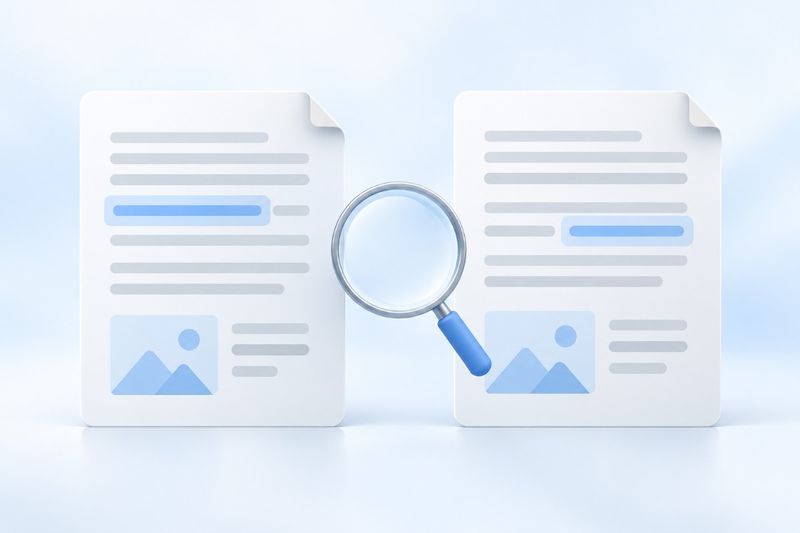
When comparing two PDFs, first decide whether you need to find text changes or changes in page appearance. PDF Smart Kit's “Compare PDF” tool offers two modes: text comparison and content overlay. Text mode is suitable for files with extractable text, while content overlay is useful for reviewing differences in scanned pages, images, and layouts. Results identify areas that need review; they do not assess the meaning or legal validity of the content.
Confirm the File Versions First to Avoid Reversing the Comparison
Before comparing, confirm which file is the original and which is the revised version, then place each in the corresponding area. If the filenames are similar, check the export time, page count, and obvious version labels before starting the analysis.
The order of the original and revised versions affects how you interpret “added” and “deleted” content. For example, if the new version adds a note but the files are reversed, the report may show it as deleted. The difference still exists, but the direction of the change will be interpreted in the exact opposite way.
How Do You Choose Between Text Comparison and Content Overlay?
Text Comparison: Check Changes to Wording, Numbers, and Paragraphs
PDFs exported from office software usually let you select and copy text directly, so text mode is generally the best first choice. It helps locate added, deleted, or replaced text, such as a date changing from October 8 to October 12, or a quantity changing from 20 to 30.
Text mode is not a layout review tool. Changes only to images, chart colors, or a scanned stamp may not produce corresponding text differences. Text extraction order and font encoding can also affect the results. Important figures should still be checked individually on the original pages.
Content Overlay: Check Changes to What Is Actually Displayed on the Page
For scanned or image-based PDFs without extractable text, use content overlay. It compares the rendered appearance of pages and is suitable for checking stamp positions, replaced images, chart changes, and page areas that text mode cannot cover.
Visual differences do not necessarily indicate a change in meaning. Scan brightness, skewed pages, compression noise, or an overall position shift can all produce difference markers. Overlay mode can show that “this area looks different,” but it cannot automatically determine that “this is definitely an important revision.”
AI-generated conceptual image, not an actual screenshot.
Compare PDF Versions in PDF Smart Kit
Step 1: Select Two PDFs
OpenCompare PDF, then select the original and revised versions. The current workflow compares two files at a time; it does not automatically merge multiple historical versions into a single revision history.
Once both documents are ready, check the first page, page count, and file order. If either file cannot be opened or requires a password, first confirm that you are authorized to process it and obtain a readable copy through lawful means before comparing the files.
Step 2: Select a mode and locate differences
For primarily text-based revisions, start with Text mode, then check whether images and layout have also changed. For primarily scanned documents, go directly to Content Overlay. The two modes answer different questions, so “no differences found” in one mode does not mean the files are identical in every respect.
Use the differences list to locate the page, then read the full paragraph before and after the changed area. Looking only at highlighted words can cause you to miss qualifiers. For example, the number may be unchanged, but adding “no more than” before it can alter the meaning of the entire sentence.
Step 3: Adjust visual sensitivity as needed
Content Overlay offers Balanced, Strict, and Lenient sensitivity levels. Start with Balanced, then use a stricter setting for subtle changes. If scan noise produces many irrelevant marks, try a more lenient setting and manually inspect key areas.
Sensitivity involves a trade-off between detecting differences and reducing noise; Strict is not necessarily more accurate. Lenient settings may miss subtle changes, while Strict settings may flag pixel differences with no practical significance. Sensitivity applies to visual comparison, not to judging textual meaning or the importance of revisions.
Step 4: Export the report and retain both source files
After completing your review, you can export a PDF comparison report to document differences and discuss areas that need revision. The report is a visual result; it does not automatically merge the two versions or serve as an editable source document.
The report may contain content from both the old and new versions, including sensitive information deleted from the new version. Before sharing it, check the recipients and scope of the data. Do not assume the comparison report can be made public simply because privacy-related content has already been handled in the new version.
Do scanned documents need OCR first if they contain no text?
If you only want to find changes in page appearance, you do not need OCR first; you can use Content Overlay directly. To compare textual content, the files must have an extractable text layer. Consider usingOCR PDF.
However, OCR recognition errors may also be treated as version differences. For two visually identical scans, if one recognizes “0” as “O” and the other correctly recognizes it as “0,” Text mode may show a change. After processing, verify names, dates, amounts, and reference numbers before using the text comparison results to make formal decisions.
Why does a large area of differences suddenly appear?
The page order differs between the two files
Content Overlay compares corresponding pages based on their order in each file. If a page is inserted at the beginning of the revised version, all subsequent pages may become misaligned, causing differences to appear in many places. First check for inserted, deleted, or reordered pages rather than treating every marked area as rewritten content.
If you need to align copies to assist your review, you can useOrganize PDF, but retain the two unprocessed original versions and record which pages were adjusted. Aligned copies are only an analytical aid and must not be used to conceal page-order changes that are themselves part of the revision.
Page size, orientation, or export method differs
Re-exporting the same content may change fonts, spacing, and image compression. Slightly rotating the paper during scanning can also produce many visual differences. First inspect several marked areas to determine whether they merely reflect an overall shift, then decide whether to use Text mode, reduce visual sensitivity, or obtain more comparable files.
You are seeing formatting changes, not text changes
Different comparison modes can produce different results. If the text is unchanged but a chart changes color, Text mode may find no differences while Content Overlay shows clear marks. This does not necessarily mean the two reports conflict; they focus on different aspects.
Frequently Asked Questions
If no differences are detected, does that prove the files are completely identical?
No. This compares extractable text or rendered pages; it is not a full binary file analysis and does not prove that metadata, attachments, permissions, and signature status are identical. To verify whether files are byte-for-byte identical, use a method designed for that purpose, such as file hashing.
Can the comparison report review a contract for me?
No. The tool helps locate changes, but it does not interpret the implications of clauses or verify signers' identities or document validity. Important contracts should be reviewed alongside the original text, business context, and any necessary professional advice. Do not decide whether to accept revisions based solely on the number of differences.
What steps should I follow when sending the new version after comparison?
First confirm the final version, then handle sensitive content as needed or usePDF Password Protection. Do not mix the analysis report with the final deliverable, and do not use password protection as a substitute for reviewing recipient access permissions.
Effective comparison is not about obtaining a difference count, but understanding every key change in context. Choose the appropriate mode, check the versions and page order, and retain both the report and source files to maintain an auditable record of the version review.